
Best TV settings for PS5: the right port and cable, TV settings and the Video Output menu
2026-11-03 · Guides
Your 4K TV is set up, your PS5 is connected, and yet the picture looks soft, your button presses lag and 120 Hz says "unavailable" in settings. Sound familiar? The cause is almost always in one of three places: the port, your TV settings or your console settings. Let's go through the whole chain step by step.
Step 1: Port and cable
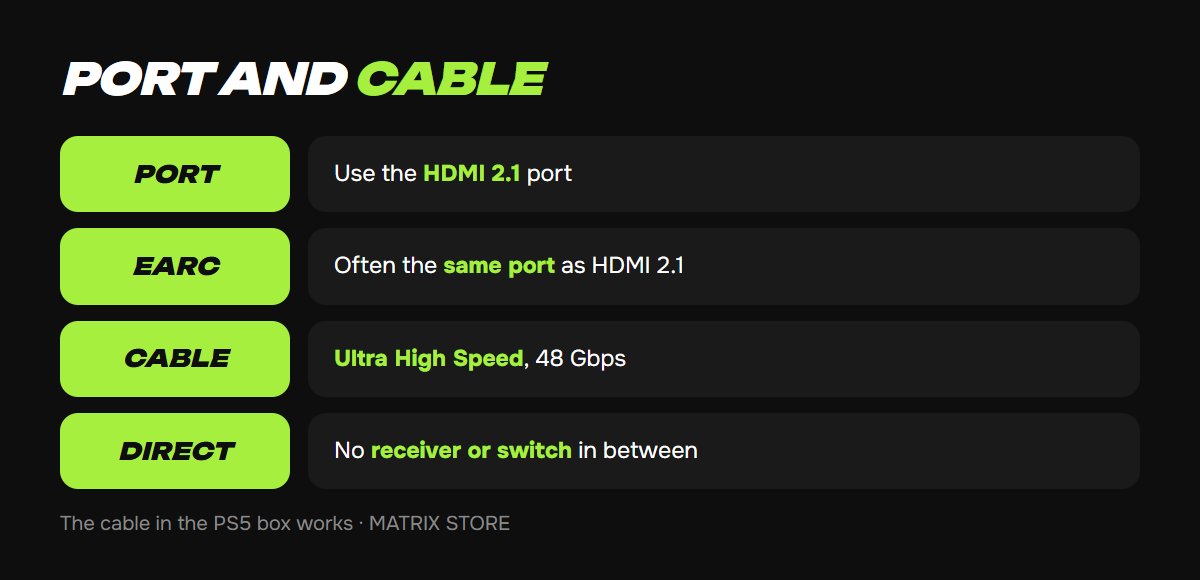
1. Find the HDMI 2.1 port. On many 2020–2024 TVs, only one or two of the four ports offer full bandwidth (4K 120 Hz). They may be labeled "4K@120" or not at all, so check your TV's manual or the sticker near the ports. Sony's PS5 instructions say it plainly: if you have a port that supports HDMI 2.1, use it for the console.
2. Don't use the eARC port unless you have to. The eARC port is often the only HDMI 2.1 port. If a soundbar is connected to it, you'll have to put the console in another port or route the audio differently, for example through headphones.
3. Cable. Sony recommends the cable from the PS5 box or any cable labeled Ultra High Speed (48 Gbps, HDMI 2.1 certified). Older High Speed cables can handle 4K 60 Hz but not 4K 120 Hz. Connect the console directly to the TV: a receiver or switch in between is a common cause of "missing" 120 Hz.
Step 2: TV settings
1. Turn on the enhanced signal format for the PS5's port. Each brand has its own name: Sony calls it "HDMI Signal Format → Enhanced", Samsung "Input Signal Plus", LG "HDMI Deep Colour", and TCL and Hisense "Enhanced HDMI" or "HDMI 2.1". Without this option, the TV won't accept 4K HDR and 120 Hz.
2. Game mode. It turns off most image processing and cuts input lag. Newer TVs have ALLM (Auto Low Latency Mode): the TV switches to game mode by itself when the PS5 starts a game. On older ones, turn on "Game Mode" manually for the console's input and check that it really turned on.
3. Turn off the "enhancers". Motion smoothing (MotionFlow, TruMotion, Auto Motion Plus) adds lag and artifacts, while noise reduction and extra sharpness blur the picture or add halos. They're usually already off in game mode, but it's worth checking.
4. Update your TV's firmware. This is a separate item on Sony's checklist, since some TVs got 4K 120 Hz and VRR through an update.
While your TV is being set up, choose something to play: the Matrix Store catalog offers games on your own account and through Game Sharing.
Step 3: Console settings
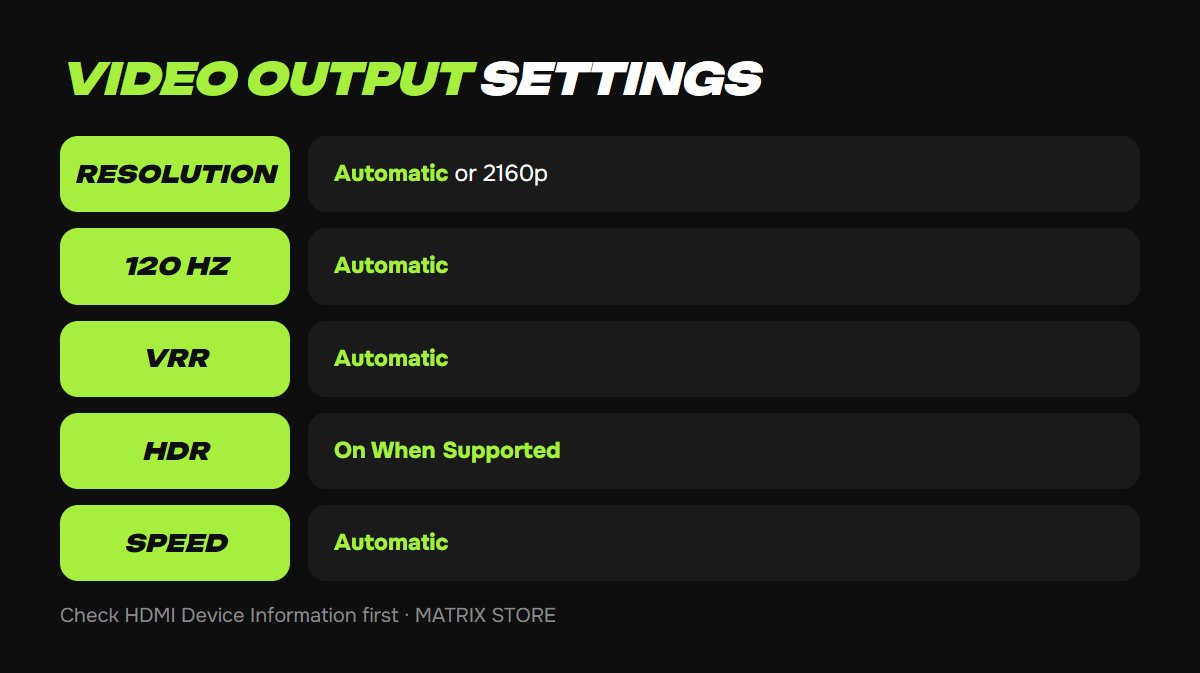
Everything is in Settings → Screen and Video → Video Output. Here's what's there, according to Sony's official description:
- HDMI Device Information: look here first. The console shows what resolution, VRR and HDR your TV actually accepts. If 120 Hz isn't here, the problem is the port, cable or TV settings from steps 1 and 2.
- Resolution: Automatic picks the maximum your TV supports, or you can force 2160p. For monitors, there's "Test 1440p Output" and 1440p itself.
- 120 Hz Output: turn it on. If a monitor shows picture problems in those games, Sony advises turning it off.
- VRR: a variable refresh rate removes screen tearing. Automatic turns on VRR in supported games on a TV with HDMI 2.1 VRR. The nearby "Apply to Unsupported Games" toggle stabilizes the frame rate where VRR isn't built in; turn it off if anything behaves strangely.
- ALLM: automatically switches the TV to low-latency mode. A note from Sony: even with ALLM off, the console puts the TV in game mode when VRR is running, so to stop ALLM completely, you also have to turn off VRR. Video apps don't send the ALLM signal.
- Video Transmission Speed: leave it on Automatic. If the screen flickers, Sony suggests setting −1 or −2, which limits 4K 120 Hz and full-color 4K 60 Hz but removes flicker on a weak cable.
- HDR: "On When Supported" shows non-HDR games in regular SDR, while "Always On" converts everything to HDR. The first is more faithful. Then run "Adjust HDR", a three-screen wizard where you dim images until they're barely visible. Run it when your TV is already in its HDR game mode, and repeat it after changing your TV or its mode.
- Deep Colour and RGB Range: Automatic. Change the range only if a device reports its capabilities incorrectly (blacks look gray or crushed).
- On PS5 Pro, there's also "Enable 8K Output" (requires an 8K 60 Hz TV with DSC), "Enhance PS4 Games Image Quality" and "Enhance PSSR Image Quality".
Checking the result
Launch a game with a "Performance" or "120 Hz" mode (you also have to turn it on in the game's own settings) and go back to HDMI Device Information. It should show 2160p, 120 Hz, VRR and HDR. If anything's missing, use Sony's checklist: Does your TV support 4K 120 Hz? Is the firmware up to date? Is the cable Ultra High Speed? Is the console connected directly? Is it definitely a 2.1 port? Is Resolution set to Automatic or 2160p, and Transmission Speed to Automatic?
Don't want to deal with it?
We'll pick a game for your TV and console and answer your setup questions. Pay with USDT. Questions? Message our manager on Telegram or WhatsApp.