
NAT Type 3 on PS5: how to check it and fix it
2026-11-03 · Guides
Short answer: NAT Type 3 (strict) means your router or internet provider is blocking incoming connections to your PS5. That's why you can't hear friends in a party, matchmaking takes forever and co-op keeps dropping. Type 2 is normal for gaming. Fix it in this order: restart your router → turn on UPnP → give your PS5 a static IP → forward ports → check for double NAT. If that doesn't help, your provider is using CGNAT, and you need a public IP address, a service your provider offers.
How to check your NAT type on PS5
Settings → Network → Connection Status → Test Internet Connection. After a minute, you'll see your speed, PSN access and a NAT Type line. On PS4: Settings → Network → Test Internet Connection.
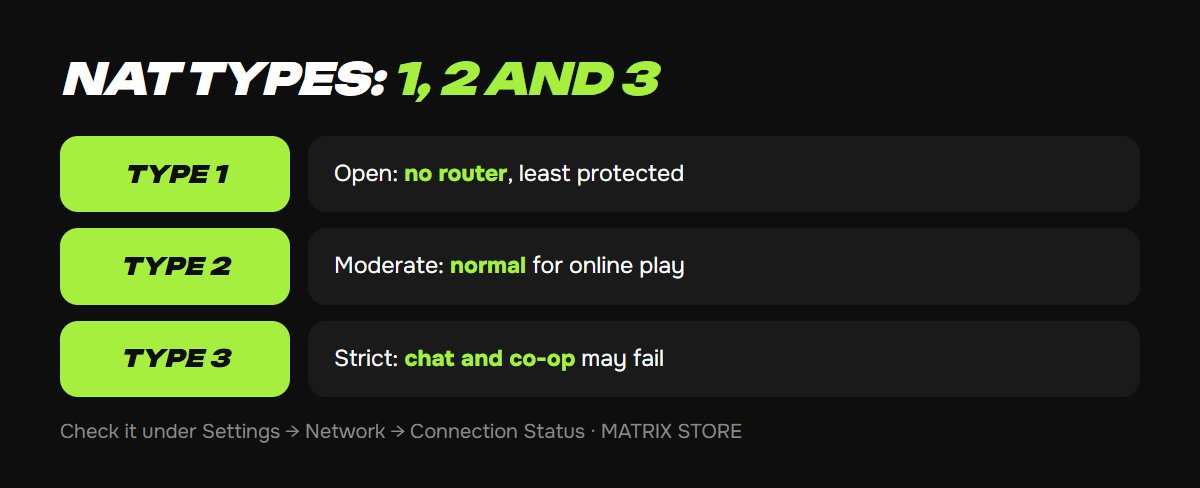
- Type 1 (open): the console is connected directly to the internet with no router. It connects with everyone but is the least protected.
- Type 2 (moderate): the console is behind a properly working router. This is the normal setup for online play.
- Type 3 (strict): connections are limited. The console only connects well with players on open NAT, and voice chat and co-op with friends on Types 2 and 3 may not work.
If it says "Couldn't obtain NAT type", the problem is your connection to PSN: check status.playstation.com and restart your router.
Step 1: Restart your router and console
Turn off your router and modem for 5 minutes, then turn them back on. Turn your PS5 completely off (not rest mode) and back on. Sometimes that's enough, because the router "forgets" stuck connections.
Step 2: Turn on UPnP on your router
UPnP lets your PS5 open the ports it needs by itself. It's the simplest and most common fix.
1. Open your router settings in a browser, usually at 192.168.0.1 or 192.168.1.1. The address and password are on a sticker on the bottom of the router.
2. Find the UPnP option (often under Advanced, NAT, Network or Forwarding).
3. Turn it on, save, and restart your router and PS5.
4. Test your connection on the PS5 again.
Step 3: Give your PS5 a static IP address
Without a fixed address, port forwarding stops working after a router restart. The easiest way is DHCP reservation on your router: find your PS5 in the device list by its MAC address and assign it an address. You can see the MAC address on your PS5: Settings → Network → Connection Status → View Connection Status. A PS5 has two MAC addresses, one for cable and one for Wi-Fi, so use the one you're connected with.
Step 4: Forward ports
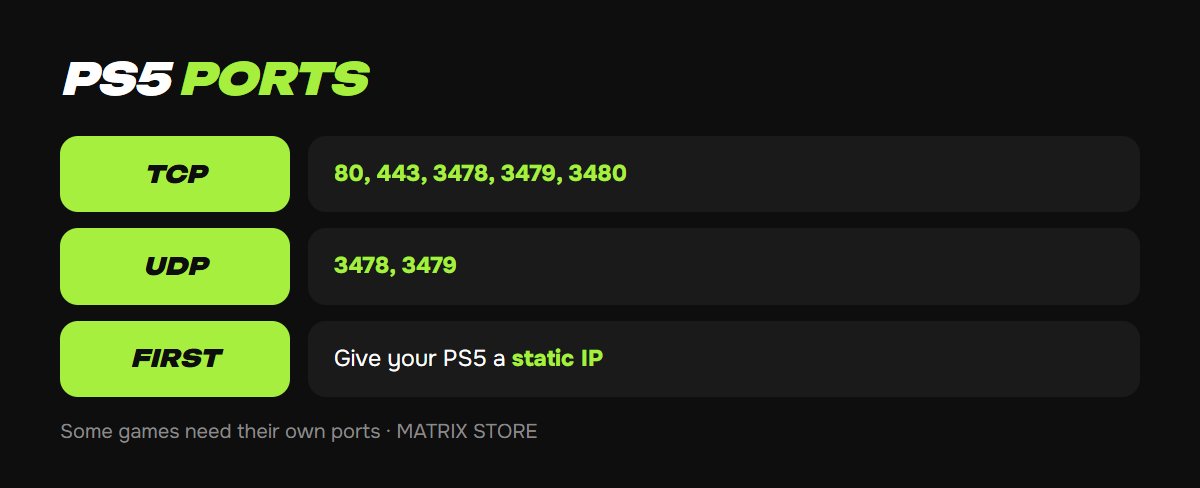
On your router, open Port Forwarding (or Virtual Server) and create rules for your PS5's IP address:
- TCP: 80, 443, 3478, 3479, 3480
- UDP: 3478, 3479
Some games need their own ports; for Call of Duty, people often add UDP 3074. Look for the exact list on the publisher's support site. Save, restart your router and then your PS5, and check your NAT again. One wrong digit in an address or port and the rule won't work, so double-check what you entered.
DMZ (opening the console completely) also works, but it removes the router's protection from your PS5. Use it only for testing and don't leave it on for long.
Step 5: Check for double NAT
If you have two routers, such as your provider's modem and your own Wi-Fi router, you've got double NAT, and Type 3 is almost guaranteed. Your options:
- switch your provider's modem to bridge mode, which your provider's support can usually do over the phone;
- or connect your PS5 by cable directly to the provider's modem and set up UPnP there.
Step 6: CGNAT from your provider
Check your router's WAN address (external IP). If it starts with 10., 100.64–100.127., 172.16–172.31. or 192.168., your provider is using CGNAT, an address shared among many customers. Router ports won't help then, because connections are cut off at the provider's end. The solution is to ask your provider for a public IP. Many providers charge for this, and some enable it on request. Don't confuse it with a "static" address: a static address can still be private, and you specifically need a public one.
More tips for stable online play
- Connect your PS5 by cable rather than Wi-Fi.
- On Wi-Fi, use 5 GHz and put the router closer to the console.
- In Settings → Network → Settings → Set Up Internet Connection, you can enter DNS manually (for example, 8.8.8.8 and 1.1.1.1) if the test hangs while getting an address.
Online play on PS5 requires PS Plus. You can get a subscription on a Turkish account, paying with USDT, in our PS Plus section.
FAQ
Do I need Type 1? No. Type 2 is enough for all games, and Type 1 means your console has no protection.
I have NAT Type 2 but still can't hear friends. Check your party chat settings and parental controls: if communication is restricted, voice chat won't work.
Does my account region affect NAT? No. NAT depends only on your network, not on whether your account is Turkish, Ukrainian or American.
Don't want to deal with it?
We'll set up PS Plus for online play or buy a game on your account. Pay with USDT. Questions? Message our manager on Telegram or WhatsApp.