
Keyboard and mouse on PS5: USB and Bluetooth setup, where the settings are, which games support them and why most still need a DualSense
2026-11-04 · Guides
Typing a password on a DualSense is slow, and some players want the familiar keyboard-and-mouse feel in shooters and strategy games. Your PS5 supports both: any USB or Bluetooth keyboard and mouse works in the console menus and in any game whose developer added support. Here's how to connect them, what you can adjust, and where the limits are.
What works
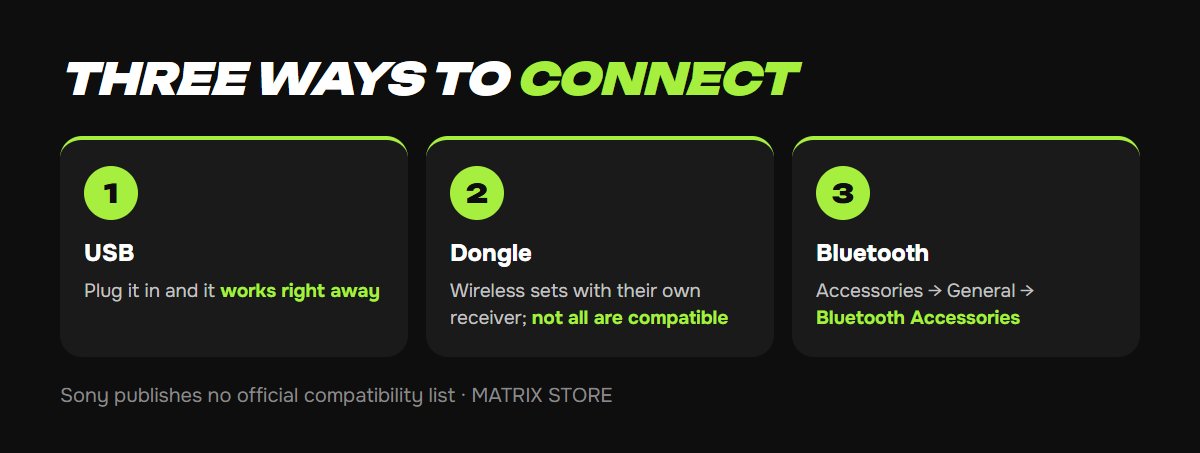
- Wired USB. Plug it in: there's a USB-A and a USB-C port on the front and two USB-A ports on the back. Nothing to configure.
- Wireless with a USB dongle. Works through its own receiver, but Sony's wording is "not all devices work with your console," so check the product listing.
- Bluetooth. Pairs through the console menu like a headset.
- A USB hub works too and takes up a single port.
Sony doesn't publish a compatibility list. In practice, basic keyboards and mice connect without trouble; gaming models with their own software work in a basic mode without macros or lighting control.
Pairing over Bluetooth
1. Put the keyboard or mouse into pairing mode, usually by holding its Bluetooth button.
2. On the PS5, go to Settings → Accessories → General → Bluetooth Accessories.
3. Select your device from the list. It moves to Registered Accessories.
4. Next time it should connect on its own. If it doesn't, pick it from the registered list and select Connect.
Where the settings are
Go to Settings → Accessories → Other Accessories, or select Accessories from the control center.
Keyboard:
- Keyboard language. Some languages offer several input methods.
- Key Repeat (Delay). How long you hold a key before it starts repeating.
- Key Repeat (Rate). How fast it repeats.
Mouse:
- Type. Right-handed or left-handed.
- Pointer Speed.
There's no system-level key remapping. Sensitivity inside a game is set in that game's own control options.
Where they always work, and where they don't
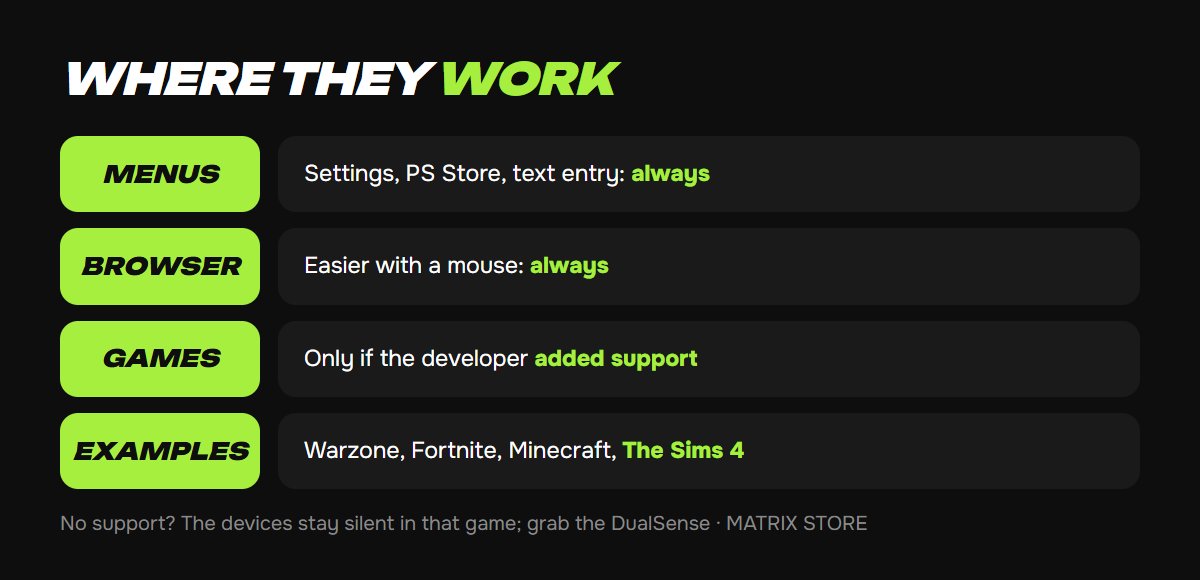
Always: console menus, text entry, PlayStation Store search, the built-in browser, and Remote Play from a PC using the PC's own keyboard and mouse.
In games, it's up to the developer. The PlayStation Store has no "keyboard and mouse supported" badge, and Sony doesn't keep a list. Guides name Call of Duty: Warzone, Fortnite, Minecraft, Overwatch and The Sims 4 as examples, but support can change with patches, so check the game's own description or the publisher's site. If a game doesn't support them, the devices simply do nothing in that game while continuing to work in the menus.
While you're deciding what to play, Matrix Store has games for your own account and Game Sharing options.
Things worth knowing
- In online shooters a mouse is an advantage, and some games with native support match you against other mouse players or PC players.
- Third-party adapters that make a mouse look like a controller are a separate topic with real risks: some games ban them. We don't cover them here.
- Beyond arrow keys and Enter in the menus, Sony doesn't document any console-wide keyboard shortcuts.
Troubleshooting
- Bluetooth can't find the device. It's probably still paired to your phone or laptop. Disconnect it there and pair again.
- The dongle isn't detected. Plug it directly into the console, not through a hub. If that doesn't help, the model isn't PS5-compatible.
- Wrong layout. Change the keyboard language under Other Accessories.
- The mouse is too fast or too slow. Set Pointer Speed on the console first, then the sensitivity inside the game.
Don't want to deal with it?
We'll help you pick a game for your own account or through Game Sharing and give you setup tips. Pay with USDT. Questions? Message us in the bot @matrix_eng_bot or our manager on Telegram.