
PS5 won't turn on or keeps flashing blue: what the light colors mean and how to fix it
2026-11-03 · Guides
Your console is silent, or the light flashes blue endlessly while the screen stays black. Sony describes these cases in its light indicator chart, and most can be fixed at home in half an hour. Here's the order to go in: what the color means, what to check first, which safe mode options don't erase your data, and when it's really time for a repair.
What the light is telling you
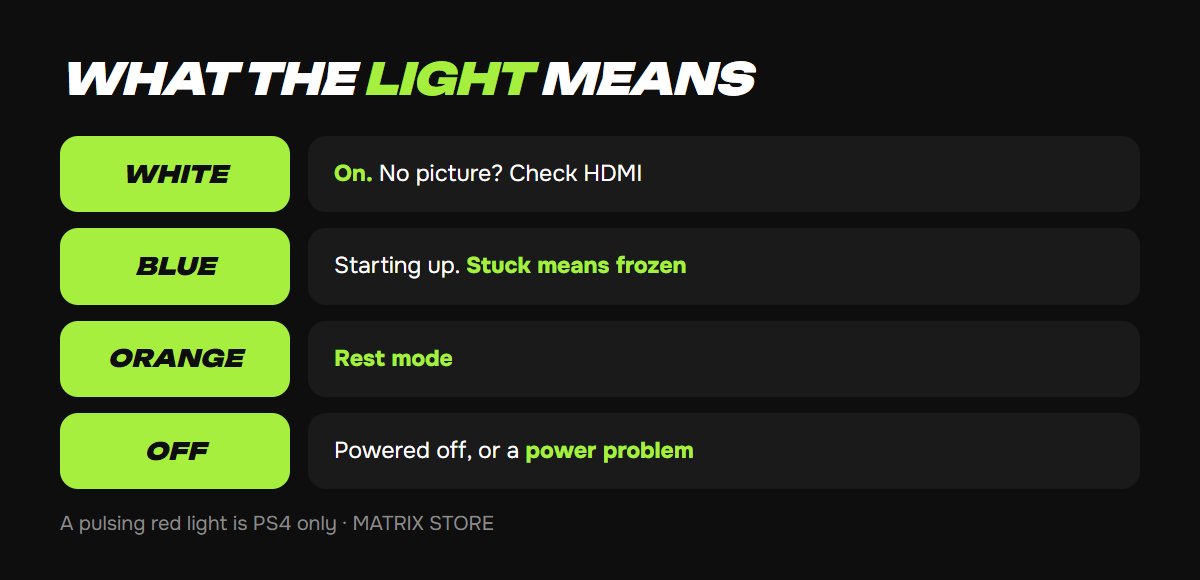
According to Sony's page on PS5 and PS4 power indicators:
- Blue, then white: the console is turning on. It's faster from rest mode than from a full shutdown.
- Solid white: it's on. If there's no picture, the problem isn't the power supply but the connection to your TV.
- Flashing white, solid blue or flashing blue: a console error. Sony says plainly: if the light only flashes white or stays blue and doesn't turn white, the console has frozen.
- Flashing white, then off: shutting down.
- Orange: rest mode. Flashing orange means it's entering rest mode, and it should go solid within a few seconds.
- Off: powered off. It isn't charging controllers or downloading updates.
A pulsing red light isn't on the PS5 chart; that's an overheating signal on PS4. A PS5 tells you it's overheating with a message on screen.
Step 1: The light doesn't come on at all
1. Check the power cable at both ends and plug it back in. The PS5 uses a regular two-prong cord (type C7, the same as PS4), so you can test with one from another device.
2. Check the outlet by plugging in a phone charger or a lamp. Remove extension cords and surge protectors, and plug the console directly into the wall.
3. Unplug the console, wait a minute and turn it on. If that doesn't help, leave it unplugged for 20 minutes, as Sony recommends on its page about safe mode problems.
4. On a disc model, iFixit suggests one more trick: carefully insert a disc, and a console with working power will turn on by itself.
If the light still won't come on after all this, the problem is the power supply or the motherboard, and that's a repair.
Step 2: Flashing blue or white, black screen
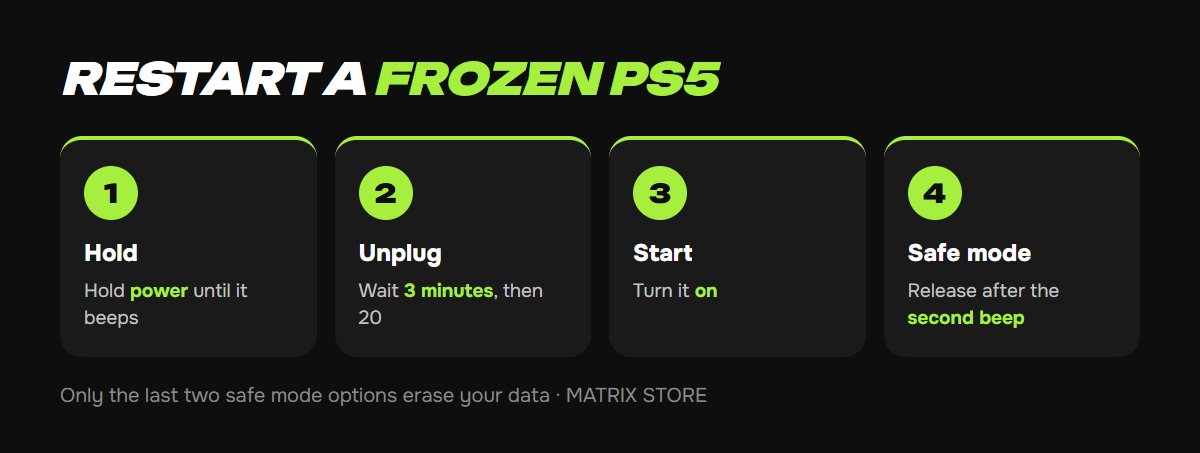
1. Force the console off: hold down the power button until you hear a beep. The light will flash white and go out.
2. Unplug the power cable and wait 3 minutes, a step from Sony's indicator chart. If that doesn't help, try 20 minutes.
3. Turn it on. If it flashes blue again and goes no further, move on to safe mode.
4. Also check the HDMI: try another cable and another TV port. If the light is solid white but the screen is black, it's usually the cable or the video output settings, which can be fixed in safe mode.
Step 3: Safe mode
To enter: with the console off, press and hold the power button and release after the second beep. The first beep sounds right away, and the second comes about 7 seconds later. Connect your controller with a cable and press PS. When the console is frozen, go in this order:
- Restart PS5: sometimes that's enough.
- Change Video Output: if the light is white but there's no picture, reset the resolution and try another HDCP mode.
- Clear Cache and Rebuild Database → Clear System Software Cache: Sony recommends this option when a console gets stuck in safe mode. It doesn't erase your data.
- Rebuild Database: scans the drive and rebuilds the database. Games and saves stay. It can take a long time, so don't turn off the console.
- Restore Console Storage: also without data loss.
- Update System Software: if the failure came after a bad update, update through USB.
- Reset PS5 and Reset PS5 (Reinstall System Software): the last two options erase everything. Before using them, if the console starts at all, back up to USB or check your PS Plus cloud.
Game Sharing titles from the Matrix Store catalog are tied to the account, not the console, so after a reset you just download them from the library again.
If safe mode won't start
Sony says one of three cables is to blame: USB, HDMI or power. Replace them one at a time, and try safe mode again after each. If that doesn't help, hold the power button until it beeps, unplug for 20 minutes and repeat. If the console still doesn't respond, your options are the diagnostic at playstation.com/repairs and a repair service. Only replace the power supply yourself if you're confident in your skills; iFixit rates the procedure as moderate difficulty.
To keep it from happening again
- Turn off through the Power → Turn Off PS5 menu, not by unplugging. Sudden power loss is the main cause of a corrupted database.
- If power outages are common, turn off rest mode: Settings → System → Power Saving → Set Time Until PS5 Enters Rest Mode → Don't Put in Rest Mode. Or get a simple UPS.
- Keep your console somewhere ventilated, and don't put anything on it.
- Make a backup every few months: Settings → System → System Software → Back Up and Restore.
Don't want to deal with it?
We'll pick a game on your own account or through Game Sharing and explain how to launch it. Pay with USDT. Questions? Message our manager on Telegram or WhatsApp.