
PlayStation 2-Step Verification: how to turn it on for PS5, PS4 and in a browser without losing your account
2026-11-03 · Guides
Short answer: 2-Step Verification is a second lock on your PlayStation account. Besides your password, signing in requires a 6-digit code from an app on your phone or from SMS. It takes 3 minutes to turn on in the security settings on PS5, PS4 or the website. The key thing is to save your 10 backup codes right away: without them, if you lose your phone, only Sony support can restore your access.
Why you need it
An account with purchased games and a subscription is valuable, and it's usually stolen one way: someone learns your password (from a leak on another site, a phishing link or a fake sign-in page) and changes the email. With 2-Step Verification, a password alone isn't enough. Nobody can sign in without the code from your phone, and you get an email about the attempt.
App or SMS: which to choose
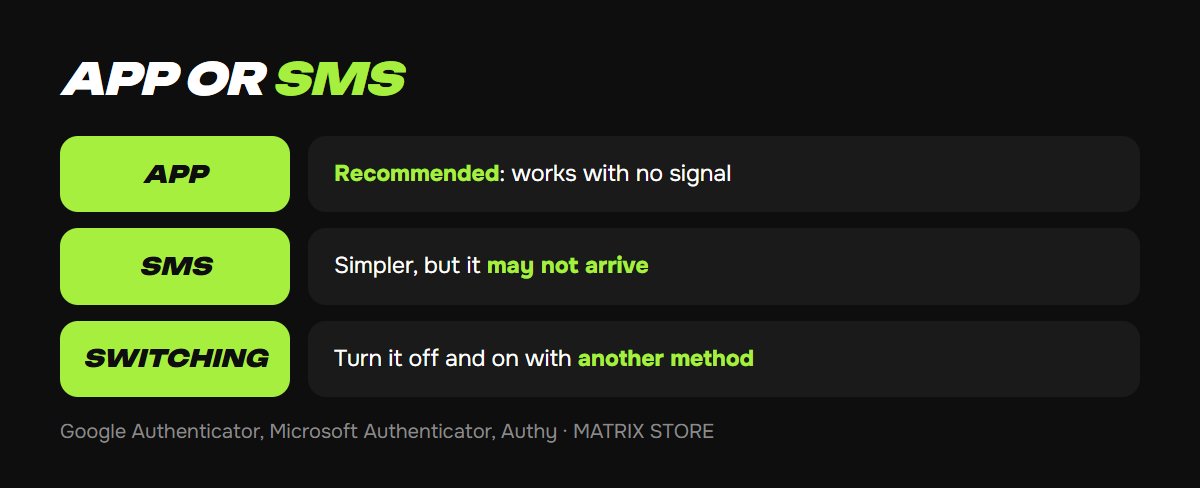
- Authenticator app (Google Authenticator, Microsoft Authenticator, Authy): our recommendation. The code appears in the app even without a signal and doesn't depend on your carrier.
- SMS: simpler but less reliable, especially for Turkish and Ukrainian accounts, because messages from Sony to numbers outside the account's country can arrive late or not at all.
You can switch later: turn 2-Step Verification off and back on with the other method.
How to turn it on: PS5, PS4 and browser
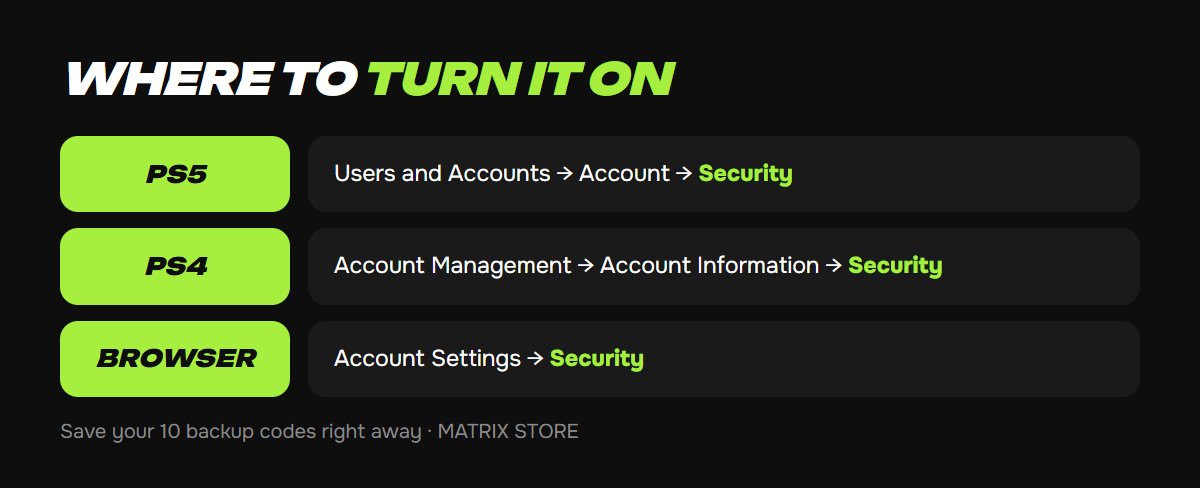
PS5: Settings → Users and Accounts → Account → Security → 2-Step Verification.
PS4: Settings → Account Management → Account Information → Security → 2-Step Verification.
Browser: sign in at playstation.com → your avatar → Account Settings → Security → select Edit next to 2-Step Verification.
From there, it's the same everywhere:
1. Choose a method: authenticator app or SMS.
2. For the app: open Google Authenticator on your phone, tap "+" and scan the QR code on screen. If your camera can't read the code, enter the alphanumeric key into the app manually.
3. Enter the 6-digit code from the app and select Activate. A code lasts 30 seconds, so if you miss it, enter the next one.
4. Save your backup codes. PlayStation shows 10 codes, and each works once. Take a photo of the screen or write them down on paper, and keep them separate from your phone.
Backup codes: where to find and how to use them
- Where to see them: on the website, Account Settings → Security → Backup Codes; on PS5, in the same Security section once you're signed in.
- How to sign in with a code: on the website, select "Having trouble getting a code?" → "Sign in with a backup code". On PS4, press the triangle button on the code screen → "Having trouble getting a code?".
- Out of codes, or you showed them to someone: turn 2-Step Verification off and back on. The old codes stop working and you get 10 new ones.
Buying games or top-ups through a store that signs in to your account? After your order is done, change your password and get new backup codes, so that only you have access.
If a code doesn't arrive or you lose your phone
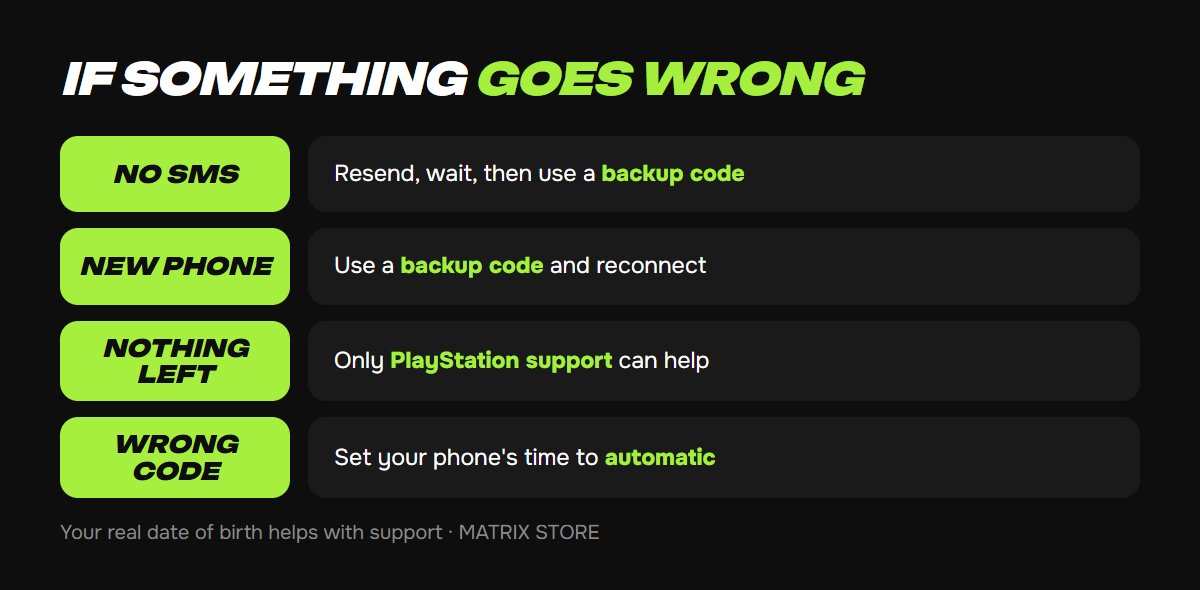
- SMS doesn't arrive. Select "Resend code", wait a couple of minutes, restart your phone and make sure airplane mode is off. If that doesn't help, sign in with a backup code.
- New phone. Transfer your codes from Google Authenticator with "Transfer accounts" before resetting the old phone. If the old phone is already gone, sign in with a backup code and reconnect the authenticator on the new one.
- No phone and no backup codes. Your only option is PlayStation support: Account → 2-Step Verification. Be ready to provide your email, date of birth, Online ID and purchase details. That's why it's so important to enter your real date of birth when registering.
- The code doesn't work even though the app shows it. Check the time on your phone: set date and time to Automatic in settings. The code depends on the exact time.
Passkey: signing in without a password
Since late 2024, you can sign in to PlayStation with a passkey on your phone (Face ID or a fingerprint). Turn it on under Security → Sign In with Passkey; on PS5, Settings → Users and Accounts → Account → Security. It requires iOS 16+ or Android 9+.
The upside: there's nothing to steal, because there's no password. The downside: signing in without your phone is harder, and you can no longer give a store access to make a purchase on your account. If you buy games through a reseller, stick with a password and 2-Step Verification.
FAQ
Do I have to enter a code every time I sign in on PS5? No. You're asked for a code when signing in on a new device or in a browser, not on your own console where you're already signed in.
Can I link a US number to a Turkish account? Yes, but the SMS may not arrive. An authenticator app is more reliable.
Will 2-Step Verification protect me if I gave my password to a "seller"? Only if you didn't also give them a backup code. After sharing access with anyone, change your password and backup codes.
Quick checklist
- 2-Step Verification is on, through an authenticator app.
- 10 backup codes are saved separately from your phone.
- Date and time on your phone are set to automatic.
- After sharing access with anyone: new password and new backup codes.
- The date of birth on your account is real, which helps with support.
Don't want to deal with it?
We'll create a ready-made Turkish or Ukrainian account in 15 minutes. See PSN account for Turkey or Ukraine for details.