
How to stream from PS5 to YouTube or Twitch without a PC: linking accounts, quality settings, camera and chat overlays, and the "preparing" fix
2026-11-04 · Guides
You don't need a PC, OBS or a capture card to go live from a PS5. Press the Create button, pick Broadcast, type a title, and you're streaming to YouTube or Twitch. The console side takes five minutes. The platform side has a few requirements that trip people up, so let's go through both.
What you need before the first stream
- A YouTube or Twitch account. PS Plus is not required for broadcasting.
- 2-step verification on that account. Sony states that some streaming services require it, and a missing 2FA is the main reason a stream gets stuck on "preparing."
- For YouTube, a verified channel. YouTube's own rules for live streaming: a verified channel, no live streaming restrictions in the past 90 days, and you must be at least 16.
- A solid upload connection. Wired Ethernet is far more reliable than Wi-Fi for 1080p.
- A camera, optional. Sony supports its HD Camera (CFI-ZEY series) and the older PlayStation Camera (CUH-ZEY). Streams work fine without one.
Step 1: link your account
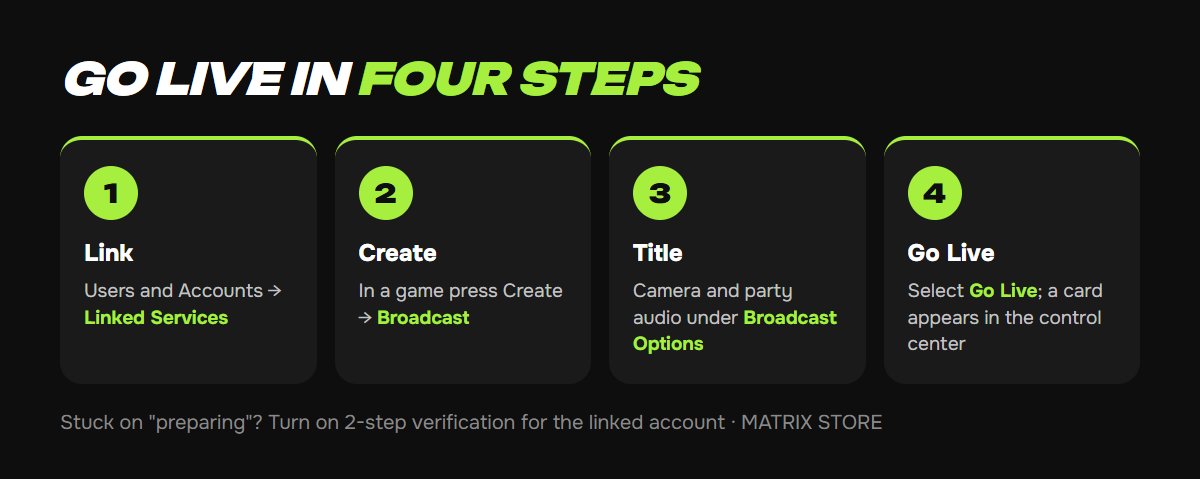
There are two ways in.
1. Ahead of time: Settings → Users and Accounts → Linked Services. Pick the service and select Link Account. Twitch shows a code and a QR code: scan it with your phone or go to twitch.tv/activate and enter the code. YouTube walks you through a Google sign-in. Once it's done, Linked appears next to the service.
2. On the fly: press Create → Broadcast → choose a service, and the console offers to link it right there.
To disconnect later, go back to Linked Services and choose Unlink Account. Sony notes that the list of available services depends on your account's country.
Step 2: go live
1. Launch a game and press Create, the small button to the left of the touchpad.
2. Select Broadcast, then your service.
3. Enter a title. Open Broadcast Options if you want your camera feed or party audio in the stream.
4. Select Go Live. A broadcast card appears in the control center with elapsed time, viewer count, mic, camera, overlay buttons, Pause and Stop.
The console saves your title and settings, so the second stream takes two button presses.
Step 3: quality, audio and overlays
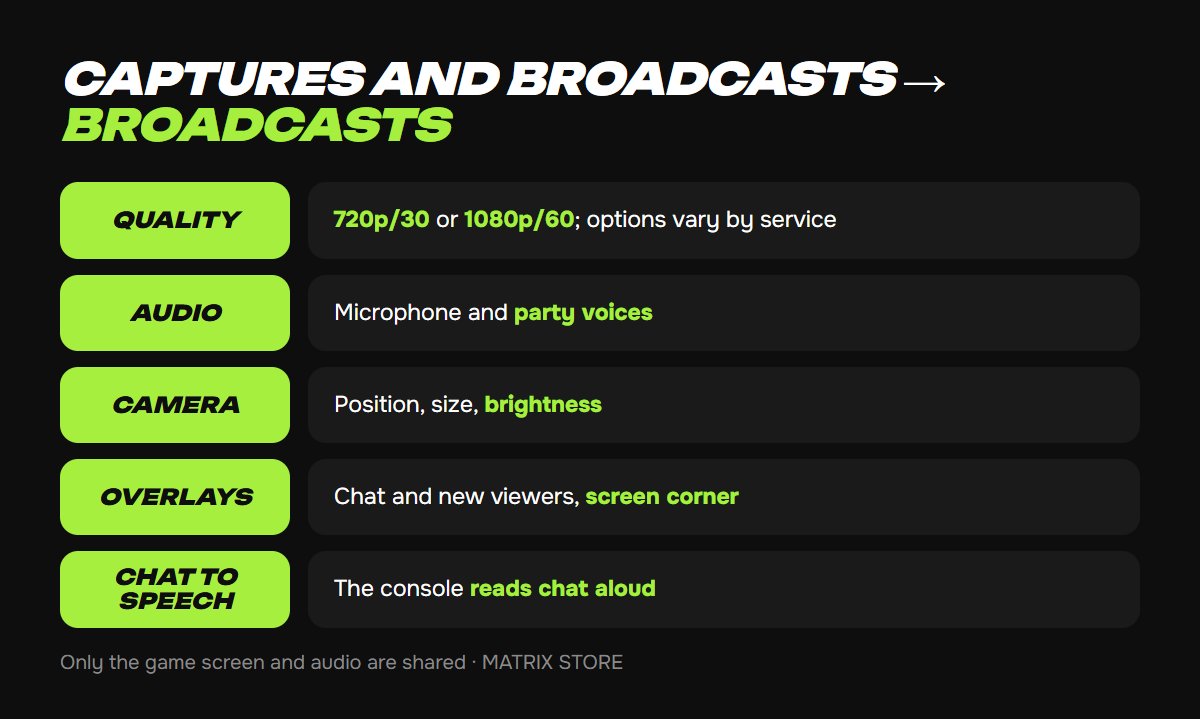
Everything lives in Settings → Captures and Broadcasts → Broadcasts:
- Video Quality. Resolution and frame rate. Sony says the available options vary by service; in practice you choose between 720p at 30 fps and 1080p at 60 fps. If viewers see stutter, drop to 720p first.
- Audio. Whether to include your microphone and your party's voices.
- Camera. Position, size and brightness of the camera picture.
- Overlays. Whether to show viewer comments and "new viewer" notices, and which corner they sit in.
- Convert Broadcast Chat to Speech. The console reads chat aloud. Only for supported languages.
During a stream the same switches are on the broadcast card: Display Chat, Display Activity and Position.
Looking for something to play on stream? Matrix Store has games for your own account and Game Sharing options.
What viewers actually see
Only your game screen and game audio. When you pop out to the home screen, viewers get a placeholder, not your menus. On PS VR2, switching to see-through view also shows viewers a blank screen with a message.
People find your stream three ways: through the game's hub, through Explore in games home, and through your profile. Archived broadcasts sit on your profile under the Shared tab (Game Base → player → profile).
Pausing and stopping
Press Create → Broadcast, or open the card in the control center. Pause Broadcast freezes your camera feed and mutes all audio until you come back. Stop Broadcast ends the stream; the recording stays on YouTube or Twitch under that platform's own rules.
Common problems
- Stuck on "preparing." Turn on 2-step verification for your YouTube or Twitch account, then unlink and relink it on the console. Sony lists this as the cause.
- YouTube won't let you start. Check channel verification and restrictions. A strike blocks live streaming for 14 days.
- Viewers see lag. Drop to 720p, plug in a cable, stop background downloads.
- Party members can't be heard. Turn on party audio under Broadcast Options; each member also has to allow their voice to be shared.
- You don't want the whole internet watching. Sony's advice: limit the audience in the YouTube or Twitch privacy settings. Streams are public by default.
Don't want to deal with it?
We'll help you pick a game for your own account or through Game Sharing and give you setup tips. Pay with USDT. Questions? Message us in the bot @matrix_eng_bot or our manager on Telegram.