
DualSense stick drift: why your character moves on its own, how to test it and what actually helps
2026-11-03 · Guides
The most common DualSense failure isn't the buttons or the battery, but the sticks. The symptoms: your cursor creeps by itself in menus, your aim pulls to the side in shooters, and your car steers on its own in racing games. This is "drift", and there's a clear mechanical reason for it. Here's what it is, how to test for it, what you can do at home and when it's time for a repair.
What causes drift
Inside each DualSense stick is a module with two potentiometers: one for the up-down axis and one for left-right. A metal slider moves along a carbon film track, and the longer it moves, the more it scratches the track. Over time, the stick's "zero" shifts, and the console sees movement where there is none. The module manufacturer lists a lifespan of about 2 million cycles, which at two hours a day means months rather than years, though drift doesn't hit everyone or happen right away. A second cause is the self-centering spring stretching, so the stick no longer returns exactly to center. A third is dust, crumbs and plastic shavings inside the stick housing. All of this is described in iFixit's teardown and confirmed by BGR in 2026: Sony still uses potentiometers in the regular DualSense.
Testing whether it's really drift
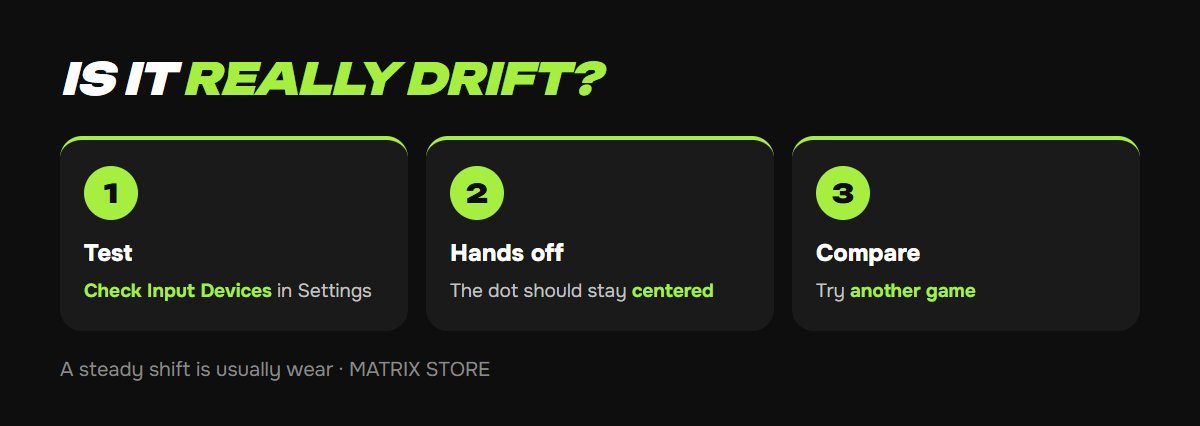
1. Test on the console. Settings → Accessories → Controllers (General) → Check Input Devices. Put the controller on a table and don't touch the sticks: the dot should stay exactly in the center. If it creeps away, that's drift.
2. Try a second controller or another game. If the cursor stays still in the PS5 menu but pulls in a game, the problem may be the game's sensitivity settings rather than the hardware.
3. Look at how it moves. A small, steady shift in one direction is usually wear or a shifted "zero", which you can live with using a dead zone. Erratic jumps mean more serious mechanical wear, and software fixes won't help for long.
What helps without opening it up
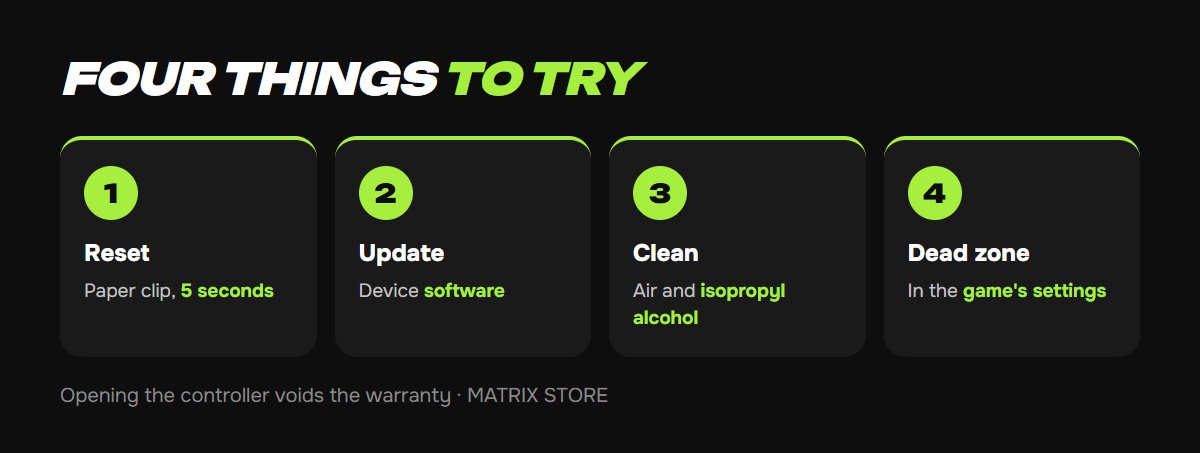
1. Reset the controller. Sony's official procedure: turn off your PS5, unplug the controller, find the small hole on the back next to the Sony logo, and press the button inside with a paper clip for at least 5 seconds. Then connect it to the console with a cable and press PS. A reset doesn't fix the mechanics, but it does clear firmware glitches.
2. Update the controller firmware. Connect your DualSense with a cable: Settings → Accessories → Controllers (General) → Wireless Controller Device Software. In its troubleshooting guide, Sony also asks you to update the console's system software first.
3. Clean it. Turn off the controller. Using short bursts of compressed air, blow out the base of the stick while rotating it in a circle. Then wipe around the base of the stick with a cotton swab barely dampened with isopropyl alcohol, and let it dry. Don't soak it, and never use water. This is the safest method, and it really does fix drift caused by dust.
4. Set a dead zone in the game. Most games have a "Deadzone" or "Stick Sensitivity" option in their control settings. Increase the dead zone slightly so that small movements are ignored. The PS5 itself has no system-wide dead zone for the regular DualSense; on the DualSense Edge, you can set one in a profile.
Controller's fine but nothing to play? The Matrix Store catalog offers games on your own account and through Game Sharing, with lifetime access.
Repair and replacement
- Warranty. Sony gives a one-year warranty on the DualSense. If your controller is newer than that, contact the seller or PlayStation Repairs, and don't open it: opening the case voids the warranty.
- DualSense Edge. Its sticks are replaceable: you buy a module separately and swap it in a minute with no tools. But the module has the same potentiometers inside, so this treats the symptom rather than the cause.
- Hall effect and TMR. Repair shops can fit a regular DualSense with magnetic sensor modules, in which no slider rubs against a track, so there's no wear. The downside: it requires soldering, is done only in a shop, and should wait until the warranty is over. It won't save a stick from spilled soda or a drop.
- Calibration utilities. PC programs that rewrite the stick's "zero" in the controller's memory remove a small, steady shift. This isn't a repair either: with heavy wear, the drift comes back.
If your controller not only drifts but also won't connect or keeps dropping, see DualSense won't connect.
Don't want to deal with it?
We'll help you choose a game on your own account or through Game Sharing and answer your setup questions. Pay with USDT. Questions? Message our manager on Telegram or WhatsApp.
Sources
- PlayStation: troubleshooting the DualSense wireless controller (reset, cable, update)
- iFixit: why PS5 joysticks drift and why they'll only get worse (potentiometers, 2 million cycles)
- BGR: why PlayStation controllers get stick drift so easily, July 2026
- Digital Trends: how to fix joystick drift on PS5
- Asurion: how to fix PS5 controller drift