
DualSense won't connect to PS5: reset, cable, firmware and interference
2026-11-03 · Guides
Short answer: in most cases, a controller reset and reconnecting with a cable do the trick. Turn off your PS5, use a paper clip to press the button in the small hole on the back of the controller (next to the Sony logo), and hold it for at least 5 seconds. Then connect the controller to your PS5 with a cable that carries data and press the PS button. If that doesn't help, try another cable and update the firmware.
What the light bar shows
- Flashes blue, then goes off: the controller is looking for the console but can't connect. You need a cable and the PS button.
- Doesn't light up at all: the battery is dead. Charge it for 15–30 minutes.
- Solid white or your player color: connected. You can unplug the cable and play wirelessly.
- Fast double flashes: the controller is in pairing mode (for a PC or phone), and the console won't see it like this.
Step 1: Connect with a cable and press PS
Connect your DualSense to a USB port on the PS5 and press the PS button. That's all pairing takes; there's no separate "search" on PS5.
The most common mistake is using a charge-only cable. The controller charges but doesn't communicate with the console. Use the cable from the PS5 box or any USB-C cable that carries data. Plug directly into the console, without extensions or hubs.
Step 2: Reset the controller
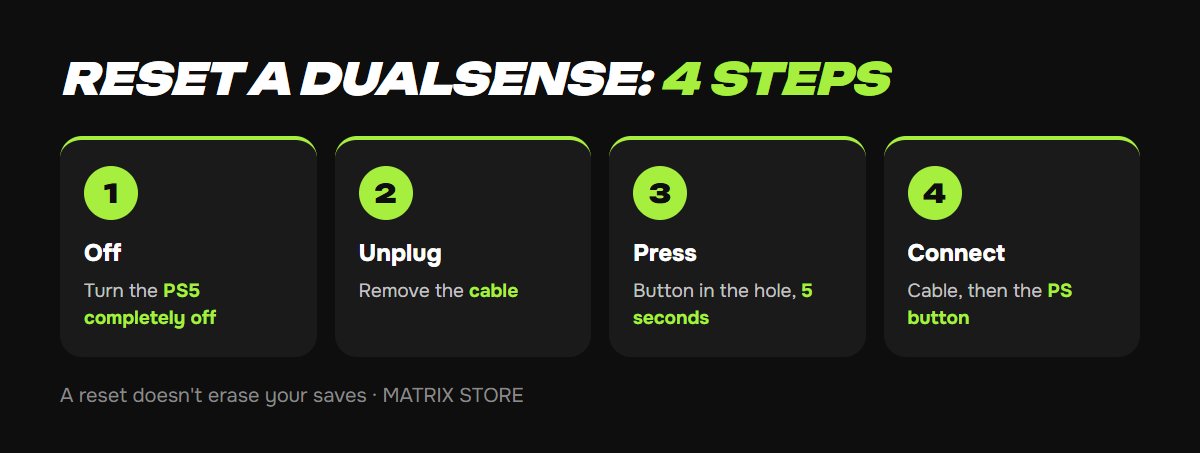
1. Turn your PS5 completely off.
2. Unplug the cable from the controller.
3. Find the small hole on the back of the controller, next to the Sony logo.
4. Press the button inside with a paper clip or SIM tool and hold it for at least 5 seconds.
5. Turn on your PS5, connect the controller with a cable and press PS.
A reset doesn't erase your saves or console settings. It only makes the controller "forget" old connections.
Step 3: Update the controller firmware
Outdated firmware can cause disconnects. On PS5, the update is usually offered automatically at startup. To check manually: Settings → Accessories → Controllers (General) → Wireless Controller Device Software. Connect the controller with a cable and select Update.
If you can't reach the menu (the controller doesn't work at all), you can update the firmware from a computer: Sony has a Firmware updater for DualSense program for Windows 10 and 11. Run it and connect the controller to your PC with a cable.
It's also worth updating your PS5 itself first: Settings → System → System Software.
Controller working again? Try it in a new game. PS5 games, paid with USDT, are in our catalog.
Step 4: Remove interference
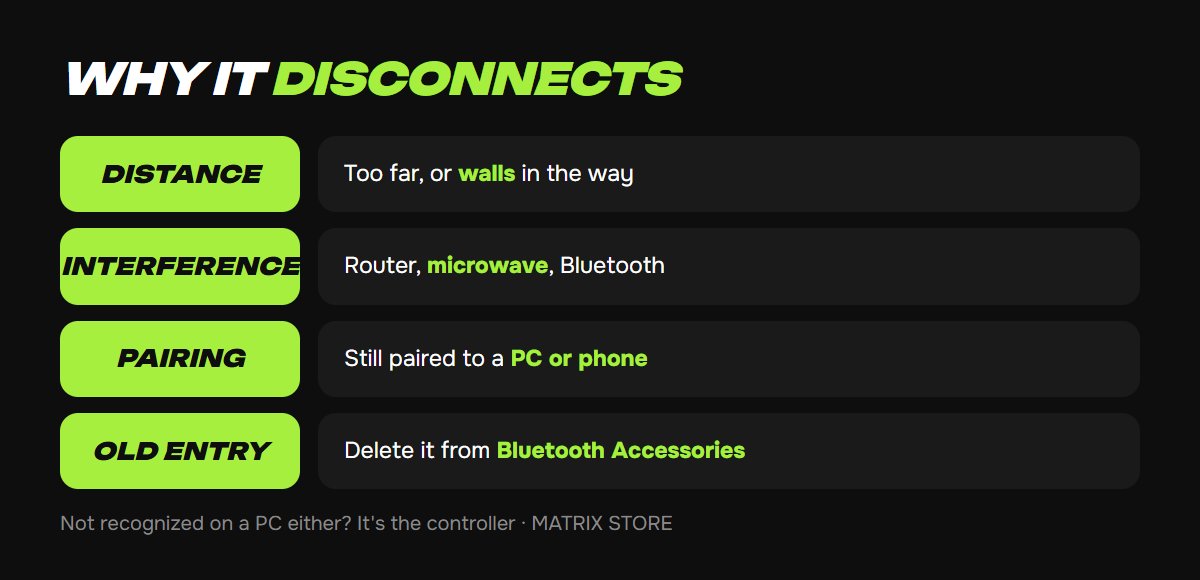
- Distance and walls. Bluetooth doesn't like obstacles. Sit closer to the console, and take your PS5 out of any closed cabinet.
- A router, microwave or other Bluetooth devices near the console cause interference.
- The controller is paired with another device, such as a PC or phone. Reset it (step 2) and connect it to your PS5 with a cable.
- Remove the old entry. On PS5: Settings → Accessories → General → Bluetooth Accessories. Delete the controller from the list and reconnect with a cable.
When it's a repair
If the controller still won't connect or charge after a reset, another cable and an update, or if a stick moves on its own (drift), the problem is the hardware. In these cases, Sony sends you to a repair service. It's easy to tell whether the controller or the console is at fault: connect it to a computer, and if it isn't recognized there either, it's the controller. For stick problems, see DualSense stick drift.
FAQ
How do I connect a DualSense to a PC or phone? Hold the Create button (to the left of the touch pad) and the PS button until the light bar starts flashing. Then choose "Wireless Controller" in your Bluetooth list.
How many controllers can connect to a PS5? Up to four at the same time.
Will a reset delete my trophies or saves? No. Everything is stored on the console and in your account, not on the controller.
Don't want to deal with it?
We'll buy a game on your account or set up PS Plus, so you've got something to play once your controller is working. Pay with USDT. Questions? Message our manager on Telegram or WhatsApp.