
PS5 error CE-108255-1: why a game keeps crashing, the fix order from updating to Rebuild Database, and when it's time for a repair
2026-11-04 · Guides
The game closes on its own and the screen reads "Something went wrong with this game or app" with code CE-108255-1. That code isn't a diagnosis. It's the PS5's catch-all for any app that quit unexpectedly, so the cause can be a broken patch, corrupted game files, a damaged console database or, rarely, the drive itself. The good news: most cases clear up without losing anything. Work through the steps in order.
What Sony says
Sony's current page for the code is short: "An error occurred with the game/application. Try updating your game," followed by a link to PlayStation Repairs. An earlier version of the same page, quoted by TheSixthAxis, laid out a sequence: update the system software and the game, delete and reinstall the game, run Rebuild Database in Safe Mode, reset the PS5, and if nothing helps, request a repair. That's the order we'll follow.
Level 1: quick checks
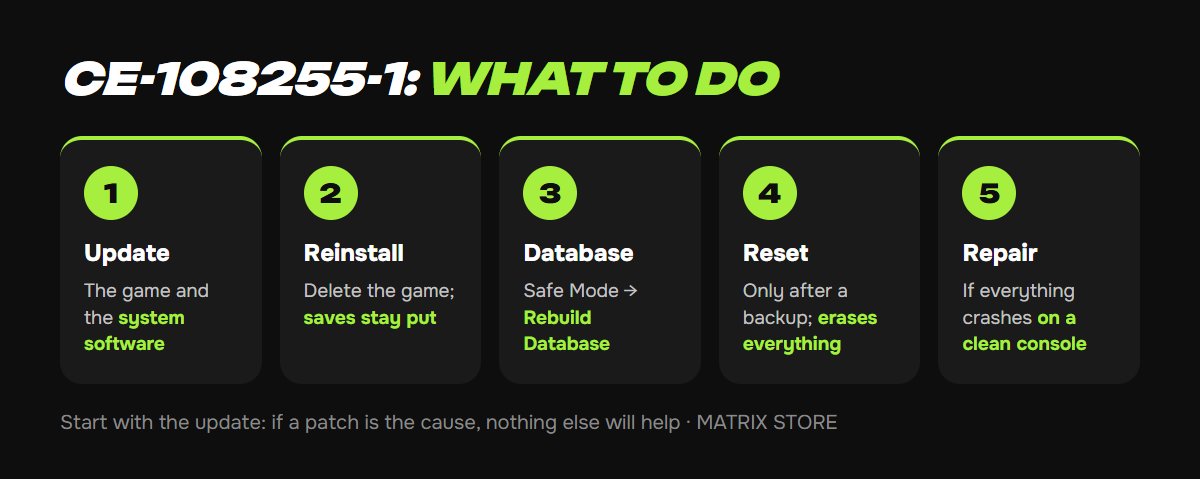
1. Close and relaunch the game. Press PS, highlight the game, select Close Game.
2. Fully restart the console, not rest mode: PS → Power → Turn Off PS5, wait 30 seconds, turn it on.
3. Update the game. Highlight it on the home screen → Options → Check for Update. If the crashes began right after a patch, check the publisher's news: Dirt 5's crashes were caused by its own patch 3.00 and fixed by the next hotfix.
4. Update the system software: Settings → System → System Software → System Software Update and Settings.
5. Check free space under Settings → Storage. Games need headroom for caches and saves; our guide on freeing up PS5 storage covers it without deleting everything.
6. Is the game on an external USB drive? PS5 games can't run from one. Move it back to the internal SSD: Game Library → game → Options → Move.
Level 2: reinstall
1. Settings → Storage → Console Storage → Games and Apps → select the game → Delete. Your saves are stored separately and stay put.
2. Download the game again from your library.
3. Restart the console before the first launch and make sure the game's update installed.
If only one game crashes while everything else runs, the problem is that game. Early reports clustered around Demon's Souls and Assassin's Creed Valhalla. If different games crash, move on to Safe Mode.
Bought the game through Matrix Store on your own account or via Game Sharing? Message us and we'll tell you what to check first.
Level 3: Safe Mode and Rebuild Database
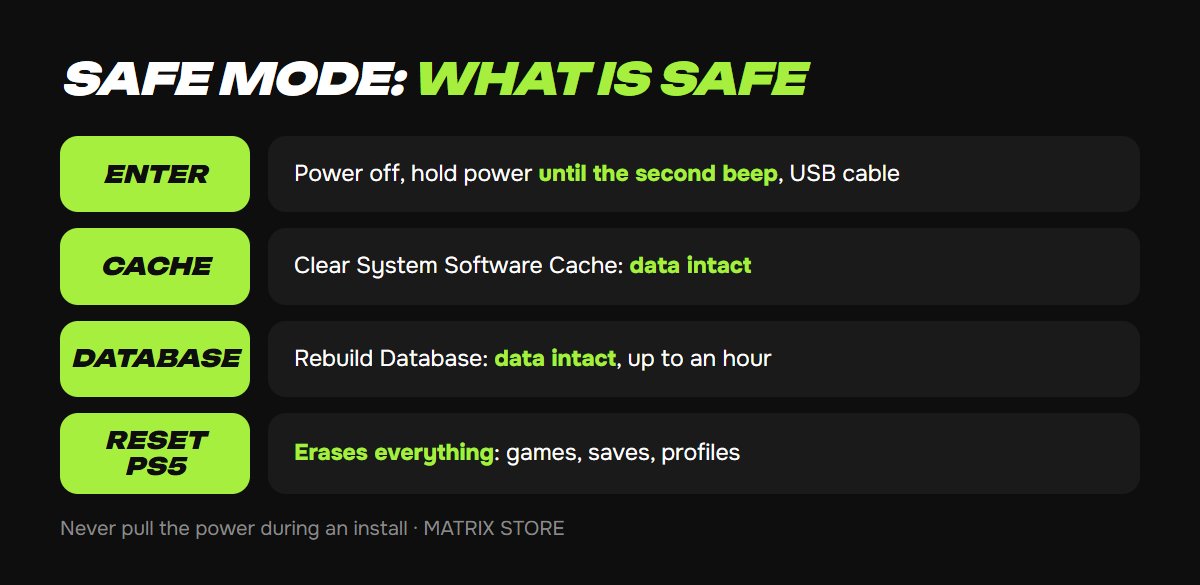
The database is the console's index of everything on the drive. When it's damaged, games crash for no visible reason. Rebuild Database re-creates that index without deleting games or saves: Sony describes it as scanning the drive and creating a new database of all content.
1. Turn the console off fully: hold the power button for three seconds.
2. Hold the power button again and release after the second beep, about seven seconds in.
3. Connect your DualSense with a USB cable and press PS.
4. Choose Clear Cache and Rebuild Database → Rebuild Database. With a large library it can take up to an hour.
The same menu has Clear System Software Cache, which is also harmless and worth trying first if the console feels sluggish overall.
Level 4: reset
Reset PS5 (Settings → System → System Software → Reset Options) wipes all user data: games, saves, captures, profiles. Before you do it, upload your saves to PS Plus cloud storage or a USB drive and make sure you know your account password. Afterward, install only the game that was crashing and test it before downloading everything else.
If games still crash on a clean console, especially all of them, Sony points you to repairs. That pattern can mean a failing drive.
What not to do
- Don't pull the power cable during an install or update. That's how databases get corrupted in the first place.
- Don't keep PS5 games on an external drive hoping it's more stable. They won't launch from there.
- Don't jump straight to a reset. An update or a database rebuild fixes most cases.
Don't want to deal with it?
We'll help you pick a game for your own account or through Game Sharing and give you setup tips. Pay with USDT. Questions? Message us in the bot @matrix_eng_bot or our manager on Telegram.