
How to free up space on PS5: delete games or just parts of them, clear screenshots and saves, move games to USB
2026-11-03 · Guides
The original PS5 offers only about 660 GB out of 825 GB for games, and big titles eat through that quickly. The good news: deleting a purchase costs you nothing, because you can always download it again. Start with the biggest win: see what takes up the most space and remove what you haven't played in a while.
Where to look
Settings → Storage shows how much space is free on the console and what's using it. In Console Storage → Games and Apps, you can sort games by name, size and date last used. Sorting by size instantly reveals the biggest space hogs.
What you can remove
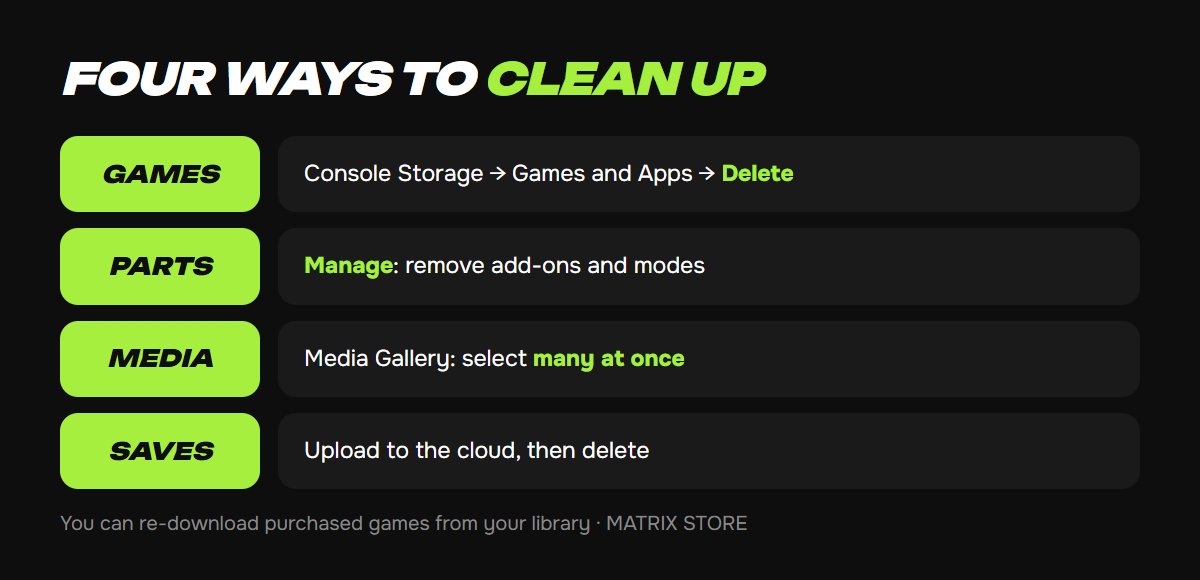
1. Whole games. Settings → Storage → Console Storage → Games and Apps, select a game and choose Delete. You can re-download what you bought from your library, and saves are stored separately, so they stay when you delete a game.
2. Parts of games. If you see "Manage" next to a title, you can delete add-ons or finished sections and keep playing the rest. This is handy for co-op and big series where the single-player campaign and online modes are stored separately.
3. Screenshots and videos. Settings → Storage → Console Storage → Media Gallery. The checkmark icon at the top left selects many files at once. To stop new ones from piling up, turn off saving screenshots and clips for trophies in the Trophies and Captures settings. You can first copy the ones you want to a FAT/exFAT flash drive.
4. Old saves. Settings → Saved Data and Game/App Settings → Saved Data (PS5) → Upload or Delete from Console Storage. They don't take up much space, but with PS Plus you can upload them to the cloud before deleting.
Cleared some room and need a new game? The Matrix Store catalog offers purchase on your own account and Game Sharing.
USB storage: how it works
A regular external drive will do: SuperSpeed USB at 5 Gbps or faster, with 250 GB to 8 TB of capacity. Plug it in directly, without a hub. Only one such drive works at a time.
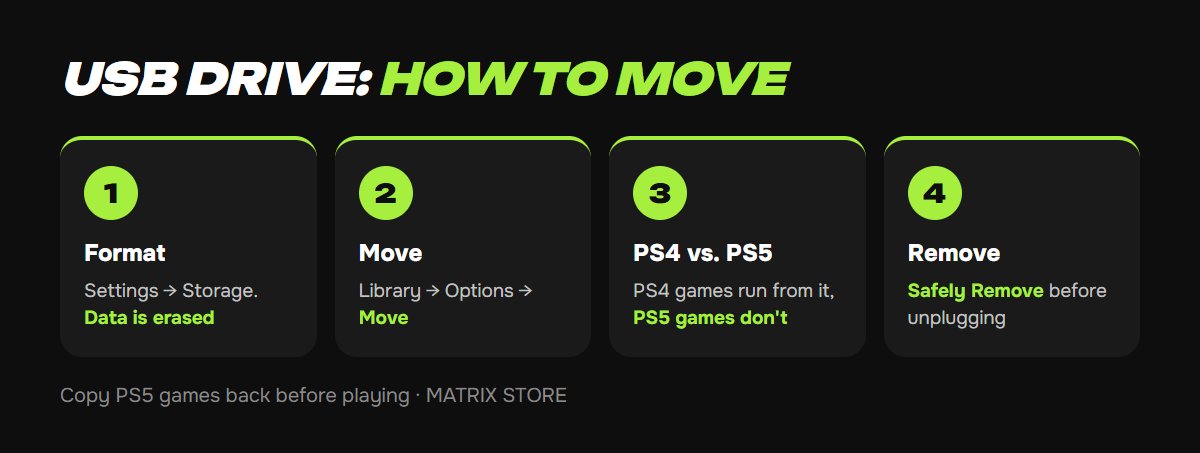
1. Format it: Settings → Storage → USB Extended Storage → Format as USB Extended Storage. Everything on the drive will be erased.
2. Move your games: Game Library → highlight a game → Options button → Move Games and Apps.
3. Choose where PS4 games go: Settings → Storage → Installation Location. PS4 games run directly from the USB drive.
4. An important note on PS5 games: they won't run from USB. You can only store them on the drive and must copy them back before playing: Game Library → Installed → Options → Copy. It's still faster than downloading them again.
5. Before unplugging, go to Settings → Storage → USB Extended Storage → Safely Remove from PS5, and make sure the power indicator has gone completely off.
A few more tips
- An M.2 SSD helps if you're always short on space, because PS5 games run directly from it. It goes inside the console and has speed requirements. See how to expand your PS5 storage for details.
- A regular flash drive (not in extended storage mode) only works for screenshots, videos and PS4 saves. Screenshots copy to it in one direction.
- Getting ready for a big release? See how much space you'll need for GTA 6 and the November 12 preload.
Don't want to deal with it?
We'll help you choose a game on your own account or through Game Sharing and give you tips on console setup. Pay with USDT. Questions? Message our manager on Telegram or WhatsApp.