
PS5 Performance Mode vs Resolution Mode: which to pick, and how to set it once for all your games
2026-11-05 · Guides
Boot up a new PS5 game and there's a good chance it asks you to pick between Performance and Resolution, or Fidelity, before you've even seen the title screen. Neither is wrong, but one will probably suit you better. Here's how to decide, and how to stop answering the question for every game.
What each mode does
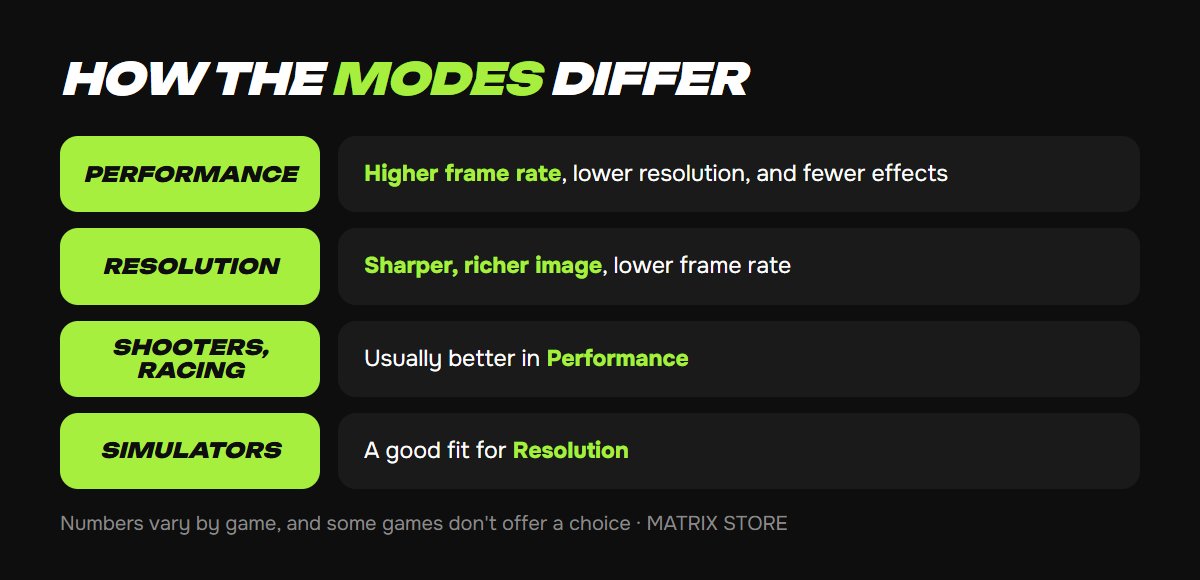
Performance Mode puts frame rate first. Motion is smoother and controls feel more responsive, but the game may give up some resolution and effects such as ray tracing.
Resolution Mode, often labeled Quality or Fidelity in a game's own menu, does the opposite: a sharper, richer image at a lower frame rate.
The actual numbers vary from game to game, and some games don't offer a choice at all, so check the graphics menu for specifics.
Which one should you pick?
Shooters and racing games: go with Performance. SlashGear recommends it for fast-paced games, and it also calls out action RPGs like Spider-Man, God of War, and Elden Ring as looking cleaner at higher frame rates.
Simulators and tactical RPGs: Resolution is a good fit, since a slower pace makes a lower frame rate easier to live with.
Not sure? Try both modes in the same scene for a minute. If you can feel the smoothness but can't spot the extra sharpness, you have your answer. BGR recommends always using Performance, but that's the writers' opinion, not guidance from Sony.
Your TV matters
A 60Hz display can't show more than 60 frames per second, so modes aimed at higher frame rates lose some of their edge on it, and SlashGear notes that Resolution can make more sense there. BGR adds that PS5 Pro owners may find Resolution more appealing thanks to the extra power. Before you judge either mode, make sure your TV settings for PS5 are right.
Want something new to test? Browse the Matrix Store catalog for games on your own account or through Game Sharing.
Set it once with Game Presets
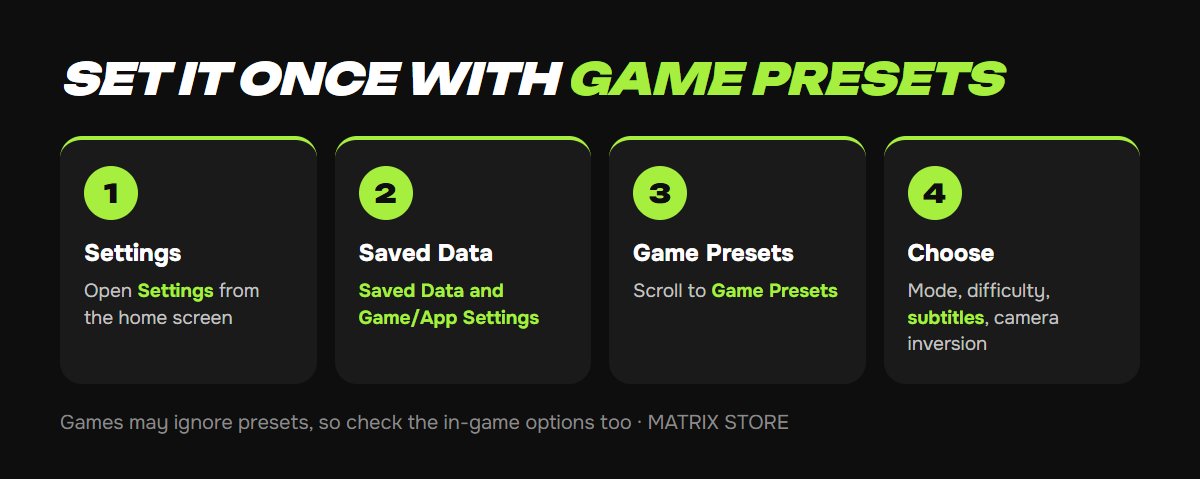
1. From the home screen, open Settings.
2. Select Saved Data and Game/App Settings.
3. Scroll to Game Presets.
4. Under Performance Mode or Resolution Mode, choose your preference. Game Default leaves the decision to each game.
The same section includes a few other time-savers:
- Difficulty: Easiest through Hardest. If a game doesn't have an exact match, the console picks the closest option.
- Camera inversion: set X and Y separately for first-person and third-person games.
- Subtitles and audio: turn subtitles on everywhere, and choose the console language or a game's original audio.
Where presets fall short
They're preferences, not commands. As MakeUseOf points out, not every game offers every option, and some might ignore your choice. It's worth checking the in-game options on first launch.
PS4 games usually need manual changes. Those titles weren't built with global presets in mind, so adjust their settings individually.
You can still switch anytime. A preset doesn't lock you in. And if a game's graphics options act up, set the preset back to Game Default, which is what Hogwarts Legacy's support team recommends.
Don't want to deal with it?
We'll help you pick a game for your own account or through Game Sharing and give you setup tips. Pay with USDT. Questions? Message us in the bot @matrix_eng_bot or our manager on Telegram.