
How to set up a PSN child account on PS5: family manager, age limits, spending limit, and what can't be undone
2026-11-05 · Guides
If your kid plays under your profile, they have your games, your friends list, and a clear path to your wallet. A child account fixes all three: you decide what they can launch, who they can talk to, and how much they can spend. Setup takes about ten minutes. One thing is permanent, though, so read the rules first.
The ground rules
- One family manager. A family has only one, and that adult needs a regular PSN account.
- Child members can't be removed. Once added, a child stays in the family and can't leave on their own.
- Children have limited account powers. They can't add payment methods, add or remove family members, or change their online ID.
- The child needs an email address. It gets verified through a link, so use an inbox you can access.
Create the account
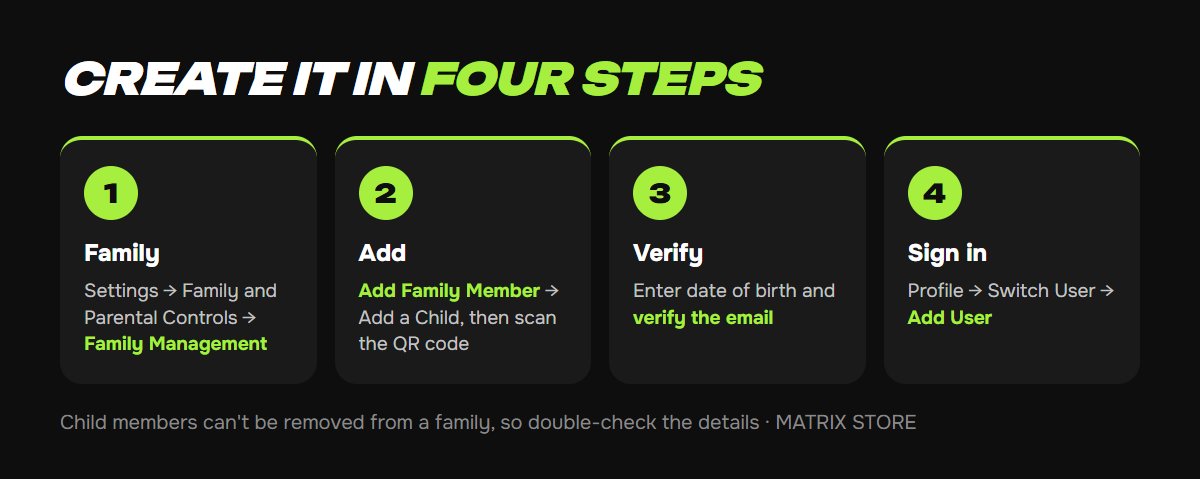
1. On PS5, go to Settings → Family and Parental Controls → Family Management and enter the family manager's password.
2. Select Add Family Member → Add a Child. The console shows a QR code that opens a form on your phone. The form asks for the child's date of birth first, because default restrictions depend on it.
3. Fill in the details and verify the child's email. According to Engadget, you may be asked for a small credit card charge to confirm you're an adult.
4. Back on the console, select your profile icon → Switch User → Add User → Get Started, then sign in with the child's details.
You can also start in a browser: Account Management → Family Management → Set Up Now → Add a Child. The PlayStation Family app has a Set Up Your Family option too, and it adds handy extras like the current play session and a seven-day activity report.
Picking something age-appropriate? Browse the Matrix Store catalog for games on your own account or through Game Sharing.
Choose a restriction level
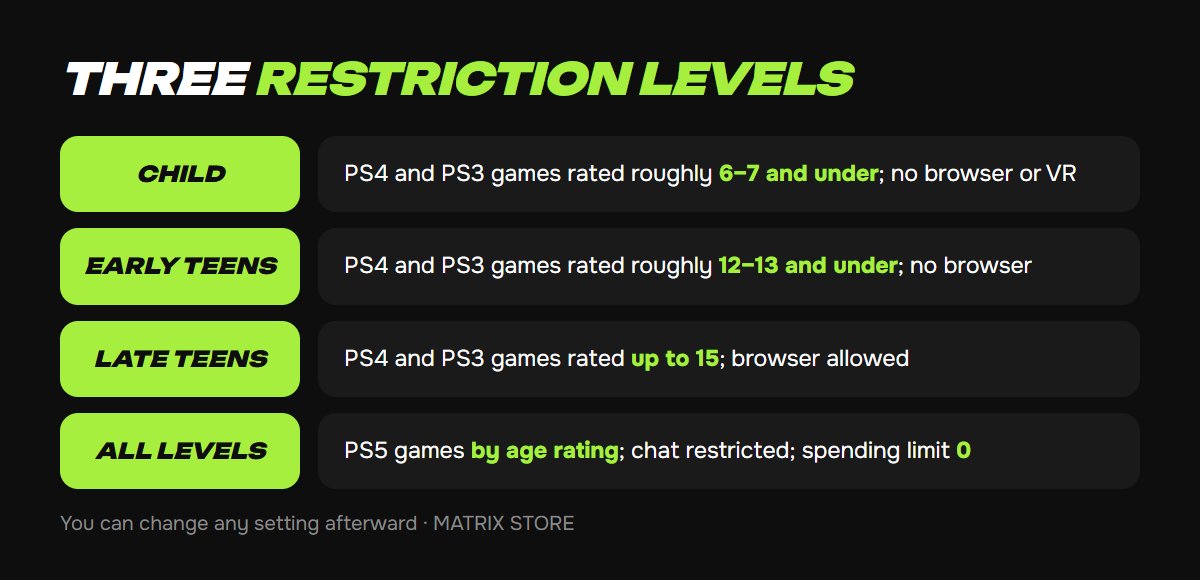
Go to Family Management → select the child → Parental Controls. Sony offers three presets, and you can adjust any setting afterward:
- Child: PS4 and PS3 games rated roughly 6–7 and under, with web browsing and VR restricted.
- Early Teens: PS4 and PS3 games rated roughly 12–13 and under, with web browsing restricted.
- Late Teens or Older: PS4 and PS3 games rated up to 15, with web browsing allowed.
At all three levels, PS5 games can start only if their age rating is the same as or lower than the child's age. Communication and user-generated content are restricted, and the spending limit is 0. Sony also notes that PS VR and PS VR2 aren't for children under 12.
While Communication and User-Generated Content is restricted, your child can't send text messages, use voice chat, see other players' content, or link third-party communication services. Pre-written in-game messages still work.
Approve a game on request
When a child tries to launch a restricted game, a request screen appears, and you get a notification and an email. Approve it from Notifications in the control center or under Family Management → child → Allowed Games. The exception covers that game only; the overall level stays the same.
Spending works differently than you'd expect
The monthly spending limit defaults to 0, so a child can't buy anything until you change it under Parental Controls → Monthly Spending Limit.
Purchases come out of the family manager's wallet. The limit caps what the child can spend each month, and it has nothing to do with how much is in the wallet. If you appoint a guardian, keep in mind that they can change the limit as well.
Let them play your games
You probably don't need to buy everything twice. Turn on Settings → Users and Accounts → Other → Console Sharing and Offline Play, and everyone on that PS5 can play the games you've bought and enjoy some of your PS Plus benefits. Age ratings and parental controls still apply to your child. The setting works on one PS5 at a time, as explained in our guide to the primary console.
When your child grows up
Once they're eligible, they'll see an upgrade prompt at sign-in. The exact age isn't given on Sony's pages and depends on local rules. Upgrading is optional and can be postponed with Do This Later, but it can't be reversed. The path is Settings → Users and Accounts → Account → Upgrade Your Account.
Don't want to deal with it?
We'll help you pick a game for your kid on your account or through Game Sharing. Pay with USDT. Questions? Message us in the bot @matrix_eng_bot or our manager on Telegram.