
How to customize your PSN profile: change your avatar, upload a profile picture, and set a cover image and About Me on PS5 and the PlayStation App
2026-11-07 · Guides
Quick answer: on PS5, select your avatar in the top-right corner of the home screen → Profile → Edit Profile (the pencil icon). That's where you change your avatar, cover image, About, and languages. To use your own photo, the PlayStation App is easiest: tap your profile → Edit Profile → Profile Picture.
Avatar vs. profile picture
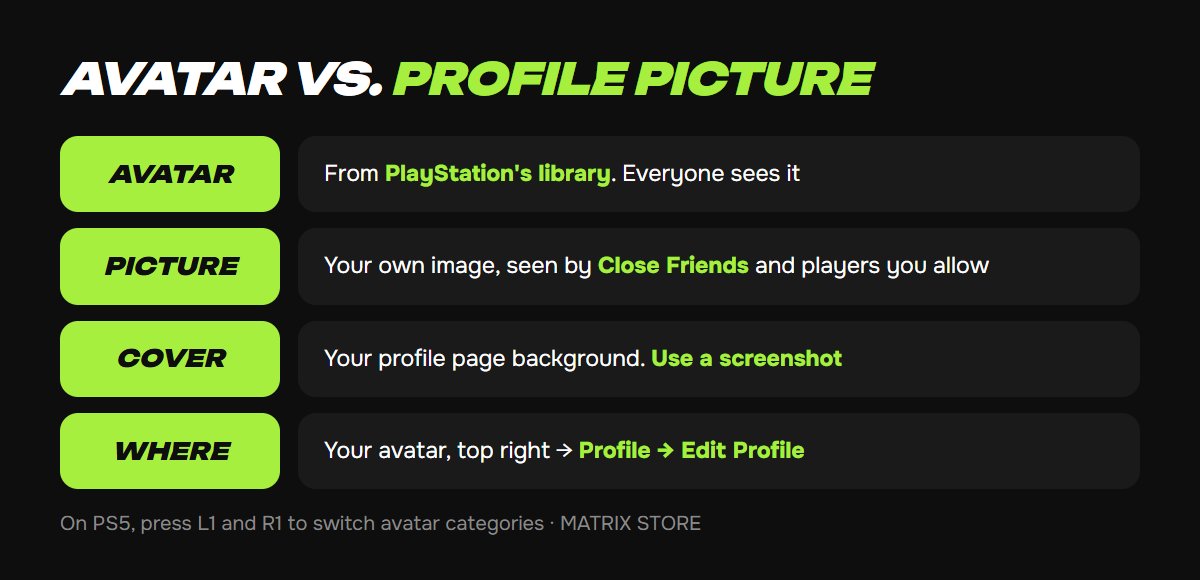
Avatar: an image from PlayStation's library. Some are free, and more are available in PlayStation Store. Everyone can see your avatar.
Profile picture: an image you upload yourself. According to Sony, only your Close Friends and players you allow in your privacy settings can see it. Everyone else sees your avatar.
Edit your profile on PS5
1. On the home screen, select your avatar in the top-right corner and open Profile.
2. Select Edit Profile (the pencil icon).
3. Avatar: choose one from the list. Press L1 and R1 to switch categories.
4. Cover Image: select Cover Image → Select Image. A great option is a shot from your favorite game: take a screenshot first, then pick it here. The cover image shows on your profile page, not as your home screen wallpaper.
5. About: add a line or two, like which games you're looking for teammates in.
6. Languages: set a primary language plus up to two more.
Quick screenshot tip: press the Create button during gameplay and choose Take Screenshot. It lands in your Media Gallery, ready to use as a cover.
Profile looking sharp? Add some new trophies to it. Shop games for your own account or through Game Sharing in the Matrix Store catalog.
Upload your own photo from your phone
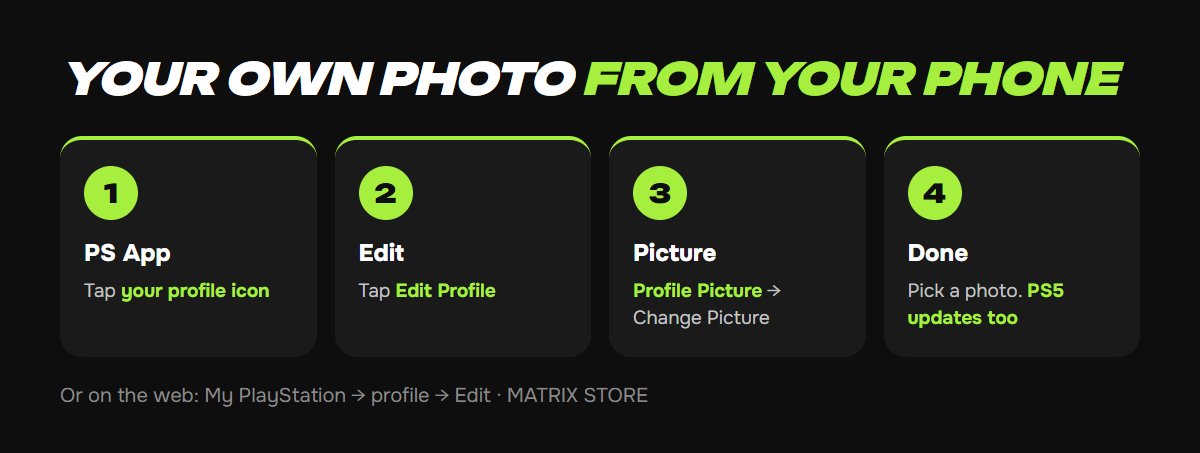
1. Open the PlayStation App and tap your profile icon.
2. Tap Edit Profile.
3. Tap Profile Picture → Change Picture, then pick a photo from your gallery or take a new one.
You can also do it in a web browser: sign in to My PlayStation, open your profile, and select Edit next to Profile Picture. The new picture shows up on your PS5 once your profile refreshes.
Online ID, real name, and privacy
Online ID: you can change it in Edit Profile too. Your first change is free.
Real name: visible only to Close Friends and players you allow. Our PSN privacy settings guide covers who sees what.
If something won't update
Wait a few minutes and reopen your profile. If a photo won't upload, try a different image, since Sony has content rules for profile pictures.
Want a hand?
We'll help with account setup and pick games for your account or through Game Sharing. Pay with USDT. Questions? Message us in the bot @matrix_eng_bot or our manager on Telegram.