
PSN privacy settings explained: appear offline, hide your games, stop random messages, and block players on PS5
2026-11-05 · Guides
Random messages, party invites from strangers, friends who can see that you played until 4 a.m.: all of this is controlled from one section of your account settings. Because privacy settings belong to your account, a change applies everywhere you sign in. Start with a preset, then fine-tune the rest.
Pick a preset
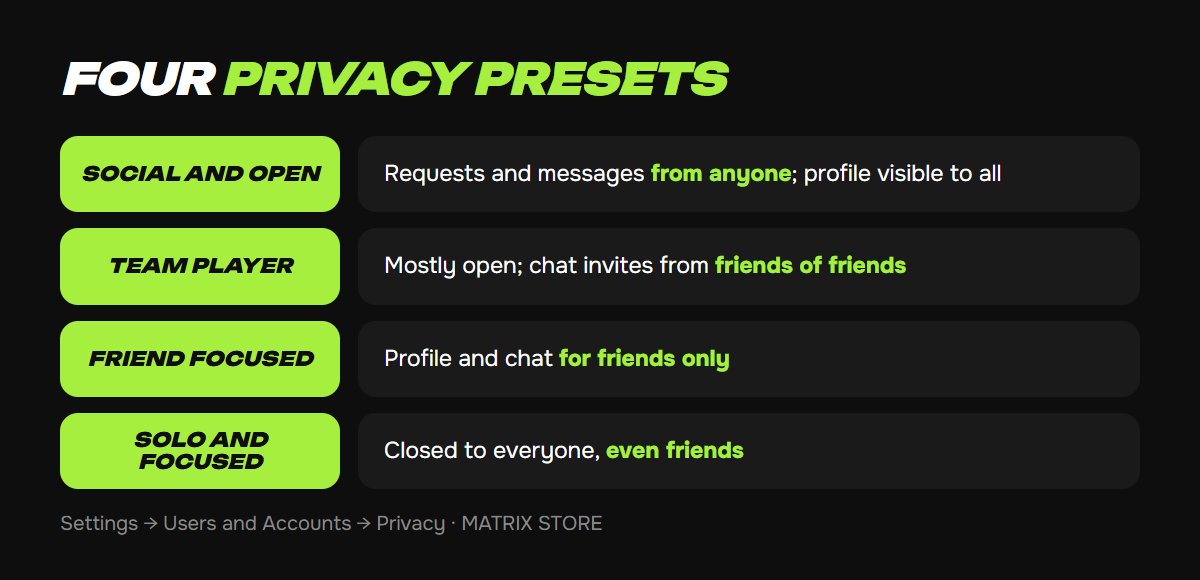
Go to Settings → Users and Accounts → Privacy, then choose Adjust Privacy Settings by Choosing a Profile. You'll see four options:
- Social and Open: you're open to all requests and messages, and any player can see your profile information.
- Team Player: any player can see most of your profile, but they need to be at least friends of friends to invite you to chat.
- Friend Focused: only friends can see your profile information and invite you to chat.
- Solo and Focused: nobody can see your profile information or invite you to chat, even friends.
For most people, Friend Focused is the sensible default. It stops strangers without getting in the way of your actual friends.
These presets are a PS5 feature. On PS4, change individual settings under Settings → Account Management → Privacy Settings. You can also adjust them on the web in Account Management.
Fine-tune what matters
Select View and Customize Your Privacy Settings on PS5. The most useful items are:
- Your activity: who sees your online status and current game, who sees your gaming history, and an option to hide specific games from other players.
- Your information: who can see your friends.
- Your real name and profile picture: separate controls for search results, in-game display, friend suggestions, and your close friends' lists.
- Communication and multiplayer: who can send friend requests, who can reach you through parties, games, and messages, your blocked players, and crossplay invitations.
Profile sorted? Find your next game in the Matrix Store catalog.
Appear offline
Select your profile icon on the home screen or in the control center, choose Online Status, then Appear Offline. The change is immediate, and your status carries over to your next sign-in.
There's one catch, and Sony says so directly: even when you're set to Busy or Appear Offline, other players can still invite you to voice chats and online games. To cut those down, tighten the Communication and multiplayer settings as well.
Block a player
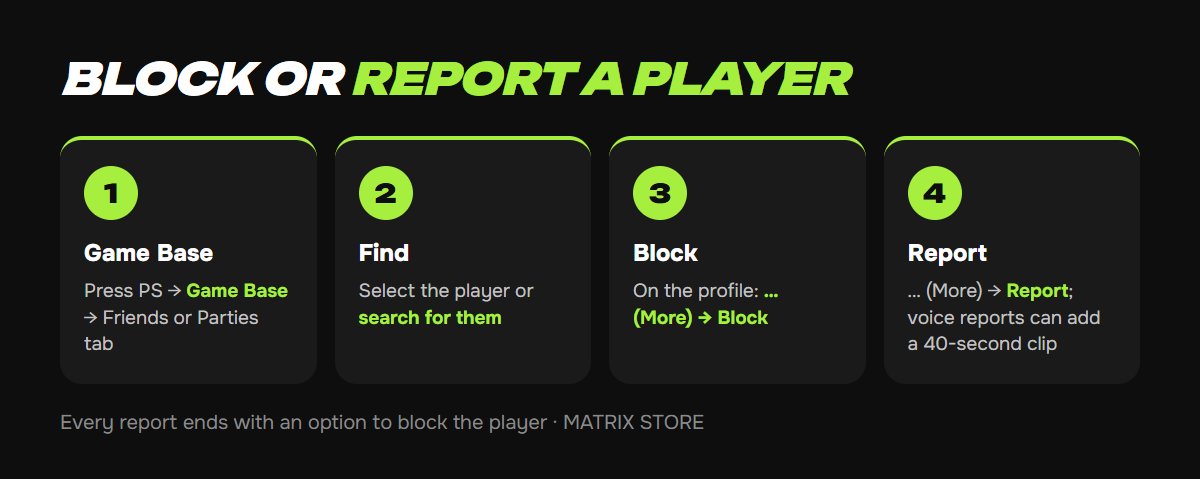
1. Press the PS button and select Game Base.
2. On the Friends tab, select or search for the player. You can also choose them from a party's member list on the Parties tab.
3. On their profile, select … (More) → Block.
Neither of you can then view the other's profile, activity, or personal information, add each other to parties, or watch each other's Share Screen. If another player puts you both in a group, you won't see each other's messages, and in a shared party chat you won't hear each other's voices.
To undo it, open Game Base, press Options, select Go to Game Base → Game Base settings → Blocked Players, and choose Unblock.
Report a player
A message: Game Base → Messages → highlight the message → Options → Report, then choose a reason.
A profile or content: Game Base → Friends → Search for Players (or choose a friend) → … (More) → Report.
Voice chat (PS5 only): press the PS button, select the voice chat card, then … (More) → Report. You can attach a 40-second clip from the last 5 minutes. If you don't know who was talking, select I'm Unsure. Every report ends with an option to block the player.
What privacy settings won't do
They don't protect the account from being stolen. For that, turn on 2-step verification, and read our guide on what to do if your PSN account is hacked. If your kid uses the console, an adult manages these settings for them: see our guide to PSN child accounts.
Don't want to deal with it?
We'll help with console setup and pick a game for your account or through Game Sharing. Pay with USDT. Questions? Message us in the bot @matrix_eng_bot or our manager on Telegram.