
Every DualSense setting on PS5: vibration, adaptive triggers, light bar brightness, speaker volume, button remapping, auto-off timer and what saves battery
2026-11-04 · Guides
Out of the box the DualSense runs at full tilt: strong vibration, stiff adaptive triggers, a bright light bar and a loud little speaker. All of that is adjustable in about five minutes, and dialing it down also makes the controller last longer on a charge. The settings are split across three places in the menu. Here's each one.
Controller (General)
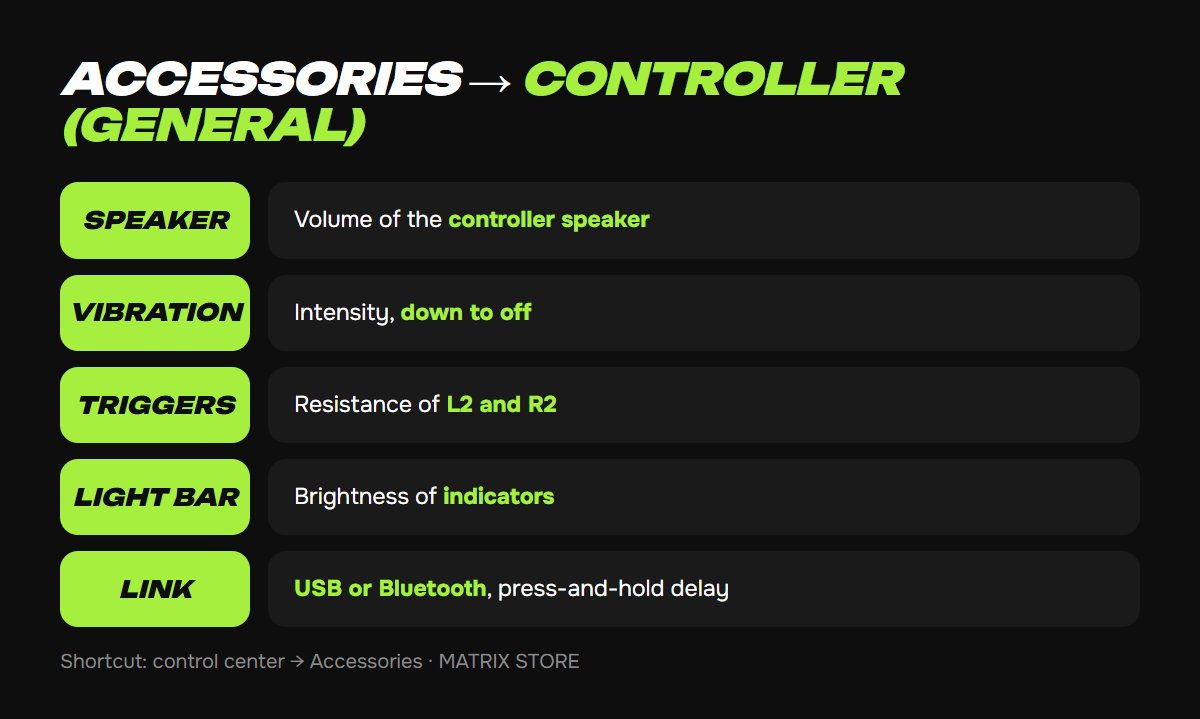
Go to Settings → Accessories → Controller (General). Sony's support page lists these items:
- Volume (Speaker for Controller). The sounds coming out of the pad itself: gunshots, clicks, hints. Separate from the TV volume.
- Vibration Intensity. Several levels down to off. After the light bar, vibration is the biggest battery drain.
- Trigger Effect Intensity. How much L2 and R2 push back in games that use adaptive triggers. Many competitive shooter players set it low or off; the game keeps working.
- Brightness of Controller Indicators. The light bar and player indicator. Dimming it extends battery life and stops the glow reflecting in your TV.
- Communication Method. Use USB Cable or Use Bluetooth. Sony's note: if Bluetooth is selected, the controller stays on Bluetooth even when a cable is plugged in. Pick USB for the lowest latency while charging.
- Press and Hold Delay. How long you hold the PS or Create button before the long-press action fires.
- DualSense Wireless Controller Device Software. Pairing and firmware updates live here. If the pad acts up, update its firmware first.
Shortcut: press PS → control center → the Accessories card.
Button remapping and stick swap
Go to Settings → Accessibility → Controllers → Custom Button Assignments for DualSense Wireless Controller.
1. Turn on Enable Custom Button Assignments.
2. Select a button, then the function it should perform, and select Apply. Swapping Cross and Circle is a common choice.
3. A separate Switch the Left and Right Sticks option swaps the sticks wholesale, useful for left-handed or one-handed play.
Assignments are system-wide, so on-screen prompts in games still show the original buttons. The same section has Haptic Feedback During Console Navigation, a light buzz while moving through menus, available only when a vibration level is selected.
Controller sorted? Pick something to play: Matrix Store has games for your own account and Game Sharing options.
Auto-off timer and battery
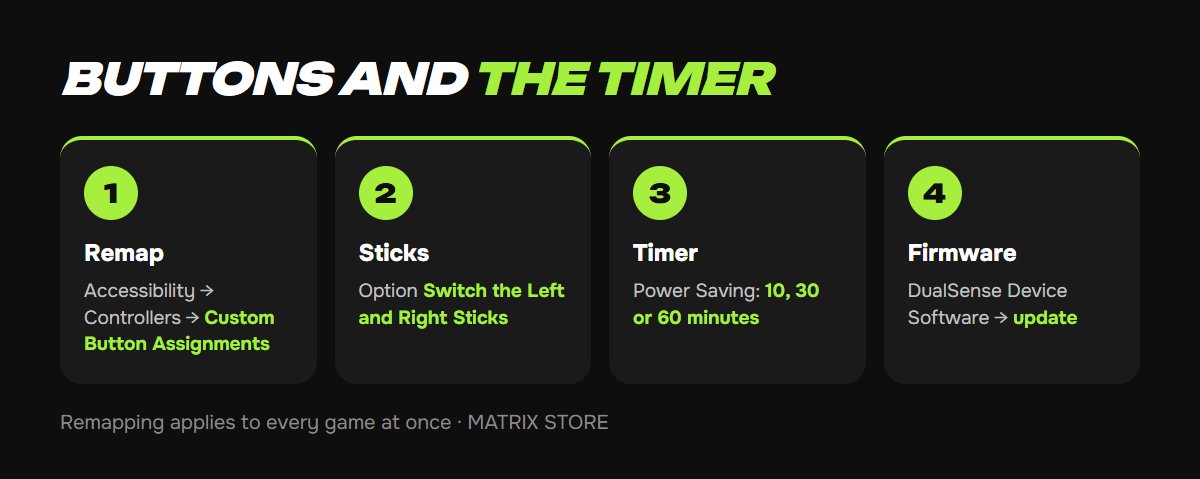
The timer isn't in the controller menu. It's under Settings → System → Power Saving → Set Time Until Controllers Turn Off: 10, 30 or 60 minutes of inactivity, or Don't Turn Off. To stretch a charge:
- dim the indicators;
- lower vibration and trigger intensity;
- turn down the speaker;
- don't leave the pad on the couch awake. A 10-minute timer handles that for you.
The controller card in the control center shows the battery level.
Headset and microphone
A headset in the controller's 3.5 mm jack is configured under Settings → Sound: volume, balance and Audio Output. The built-in mic is on by default; the mute button below the touchpad silences it, and Settings → Sound → Microphone can set it to start muted at sign-in.
How the DualSense Edge differs
The Edge gets its own section, Settings → Accessories → DualSense Edge Wireless Controller, with profiles that store stick sensitivity across six curve types, trigger dead zones, button assignments, and vibration and trigger intensity, all switchable with the Fn button mid-game. The standard DualSense has no profiles: what you set in Controller (General) applies everywhere.
If the sticks have a mind of their own
That's not a setting problem but stick drift. Test the pad under Controller (General) → Check Input Devices, and if drift is confirmed, it's a warranty or repair question.
Don't want to deal with it?
We'll help you pick a game for your own account or through Game Sharing and give you setup tips. Pay with USDT. Questions? Message us in the bot @matrix_eng_bot or our manager on Telegram.