
PS5 accessibility features: Screen Reader, Zoom, bigger text, captions, chat transcription, and custom button assignments
2026-11-06 · Guides
Quick answer: everything lives in Settings → Accessibility. You'll find Screen Reader, Zoom (PS + square), text size and bold text, High Contrast, Color Correction, custom closed captions, Chat Transcription, and Custom Button Assignments for DualSense. Mono audio for headphones sits in a different menu: Settings → Sound → Audio Output.
These settings aren't only for players with disabilities. Bigger text helps when the couch is far from the TV, captions help when the kids are asleep, and button remapping helps when a game's layout just doesn't fit your hands.
Display and Sound
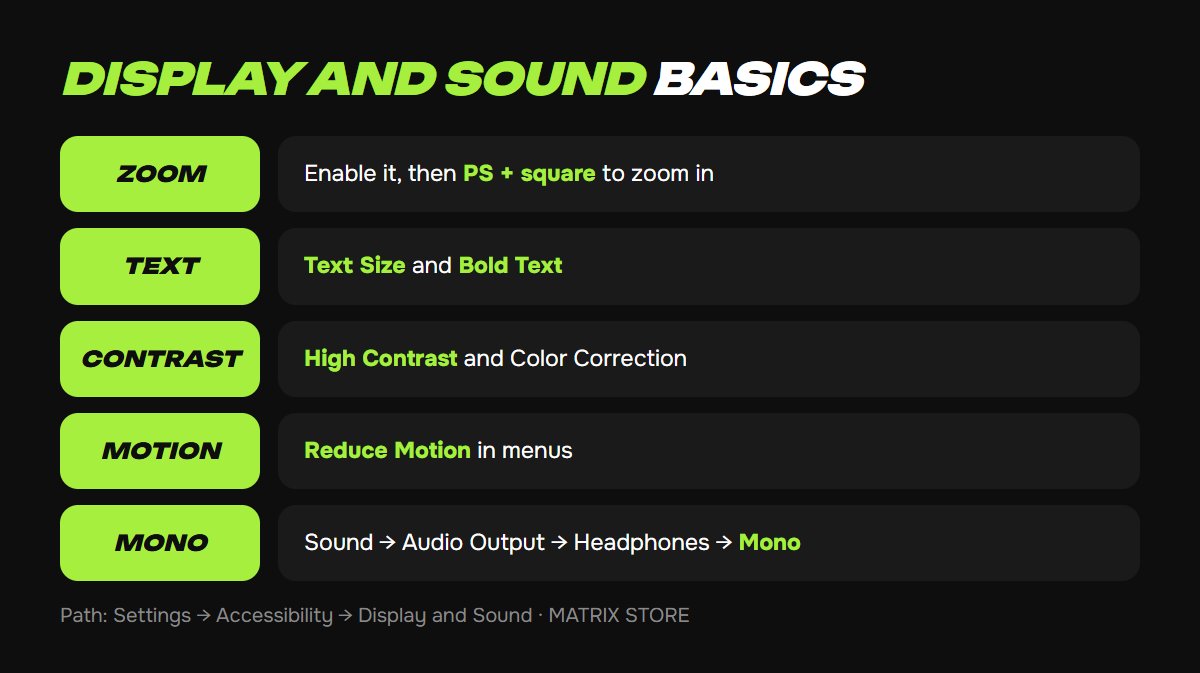
Path: Settings → Accessibility → Display and Sound.
Zoom. Turn on Enable Zoom, then press PS and square together to magnify any part of the screen. Press circle to end. An option lets the zoomed area follow movement. Zoom isn't available during Remote Play, broadcasting, Share Screen or Share Play, 8K output on PS5 Pro, or PlayStation VR.
Text Size and Bold Text make console menus easier to read.
High Contrast sharpens text against backgrounds.
Color Correction adds a color filter with adjustable intensity for color vision deficiencies.
Invert Colors flips the palette. Note that HDR turns off while it's enabled.
Reduce Motion cuts down menu animation.
Show Check Mark on Enabled Settings adds a check mark so you aren't relying on toggle color alone.
Auto-Scroll Speed controls how fast long text scrolls.
Mono Audio for Headphones is under Settings → Sound → Audio Output → Headphones, not in Accessibility. It mixes both channels together, which helps if you hear better in one ear.
Speech, captions, chat, and buttons
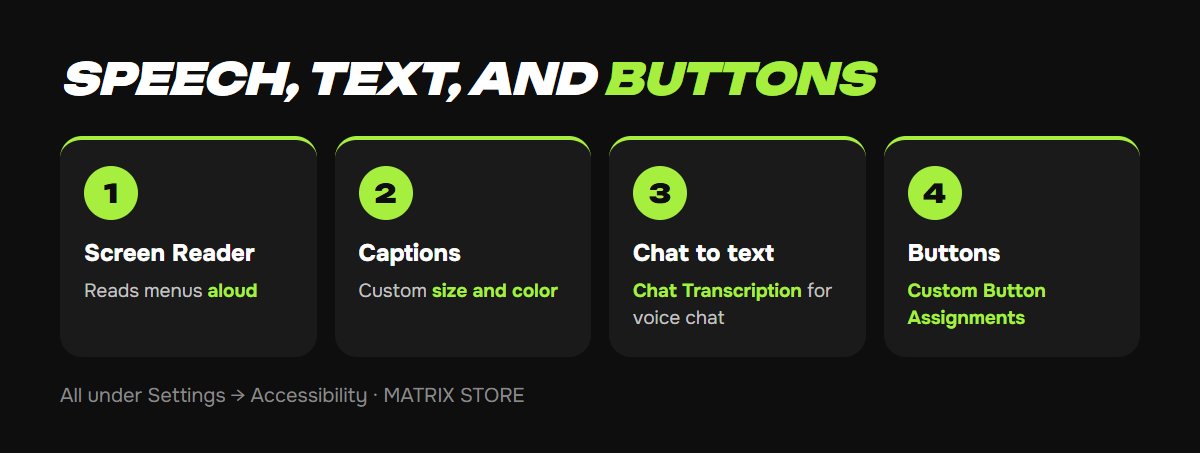
Screen Reader reads on-screen text aloud and gives spoken guidance for using the console. You can adjust Speech Speed, Voice Type, and Voice Volume. It uses your console language. Shortcuts: PS + triangle pauses and resumes, PS + R1 starts reading from the beginning.
Closed Captions work during video playback. Under Closed Captions Settings → Custom Caption Style you can change font size, color, edges, opacity, and background and window colors.
Chat Transcription turns other players' voices in parties and game chat into text, and can read your typed text aloud to others. You need to be in a voice chat, and game chat only works in games that support it. Sony lists English, French, German, Spanish, Italian, and Japanese.
Controllers includes Custom Button Assignments for DualSense Wireless Controller: swap buttons, then select Apply. You'll also find Haptic Feedback During Console Navigation, which works only with DualSense, DualSense Edge, and PS VR2 Sense controllers, and only when a vibration intensity level is set. More controller options are in our DualSense settings guide.
Got the console dialed in? Find your next game in the Matrix Store catalog, on your own account or through Game Sharing.
Check a game before you buy it
Many games have their own accessibility options, like speaker names in subtitles, aim assist, or slow-motion modes. Sony surfaces them in PlayStation Store: open the game's page and press triangle or check the side panel.
For players who find a standard controller hard to hold, Sony also makes the Access controller.
Keep it one press away
You can add the Accessibility icon to the control center, so Zoom or captions are a single PS button press away. Our guide to customizing the PS5 control center shows how.
Troubleshooting
Zoom won't turn on. Check whether you're broadcasting or using Share Play or Remote Play. Zoom is unavailable in those modes.
Screen Reader speaks the wrong language. It follows the console language, so change the system language first.
HDR disappeared. Invert Colors is probably on. HDR is disabled while it's active.
Don't want to deal with it?
We'll help with console setup and pick a game for your account or through Game Sharing. Pay with USDT. Questions? Message us in the bot @matrix_eng_bot or our manager on Telegram.