
Padlock on a PS5 game? How to restore licenses, what "Can't use this content" means, and when to reinstall
2026-11-05 · Guides
The game worked yesterday. Today there's a padlock on the icon and the PS5 won't start it. Your first instinct may be to delete and re-download it, but hold off: that can eat hours, and the problem is usually a license the console couldn't verify. Most cases take just a couple of minutes to fix.
Why the padlock appears
The usual suspects, according to Sony and gaming outlets:
- The license is out of sync, often after a crash, a PSN disruption, or a patch.
- Another account bought the game, and you're playing on a different profile without Console Sharing turned on.
- Your PS Plus ended, if the game came from a subscription. Restoring licenses won't bring that back, and Sony's restore guide specifically covers padlocks unrelated to PS Plus expiration.
- PSN is having trouble, so the license can't be checked.
- The disc is missing, if you installed the game from one.
Got the game through PS Plus? Start by checking your subscription date.
How to restore licenses
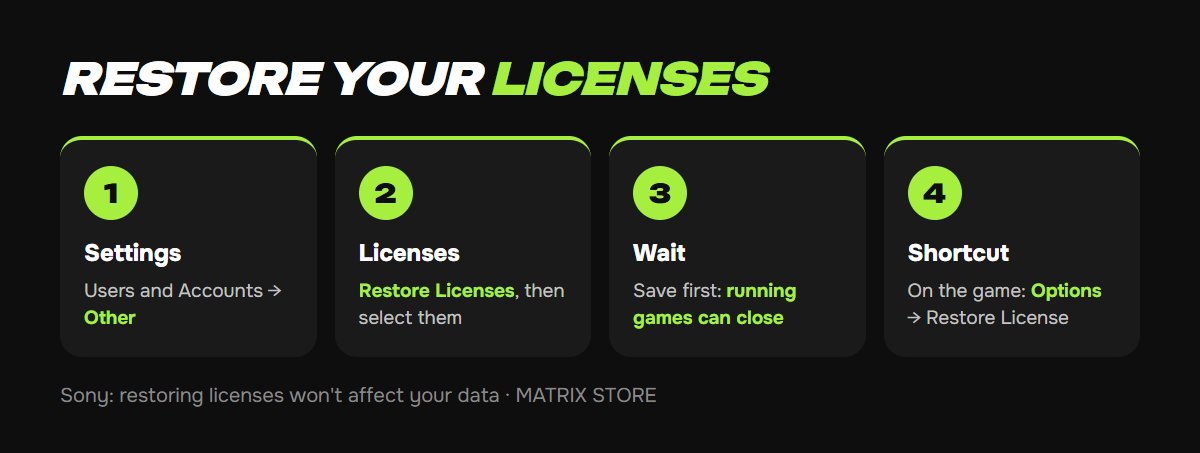
1. On PS5, go to Settings → Users and Accounts → Other → Restore Licenses.
2. Select the licenses you want to restore, then select Restore.
3. Wait for confirmation. Save first, since running games can close during the process.
For a single game, there's a shortcut: highlight it on the home screen or in your library, press Options, and select Restore License.
On PS4, go to Settings → Account Management → Restore Licenses → Restore.
Sony says plainly that restoring licenses won't affect your data, so your saves and installed games stay put.
Ready for something new while you're here? Browse the Matrix Store catalog.
If the padlock stays
Work through these in order, trying the game after each step:
1. Check PSN status. Go to Settings → Network → Connection Status → View PlayStation Network Status. If there's an outage, wait it out.
2. Switch to the owner's profile. Launch the game from the account that bought it.
3. Enable Console Sharing. On the owner's account, go to Settings → Users and Accounts → Other → Console Sharing and Offline Play → Enable. It works on one PS5 at a time. On PS4, the equivalent is activating it as your primary console. Our guide to the primary console has the details.
4. Power cycle. Shut the console down fully, unplug it for a little while, then start it again.
5. Reinstall. Delete the game and download it again, ideally over a wired connection. Before you do, back up your saves to the cloud or a USB drive.
What the messages mean
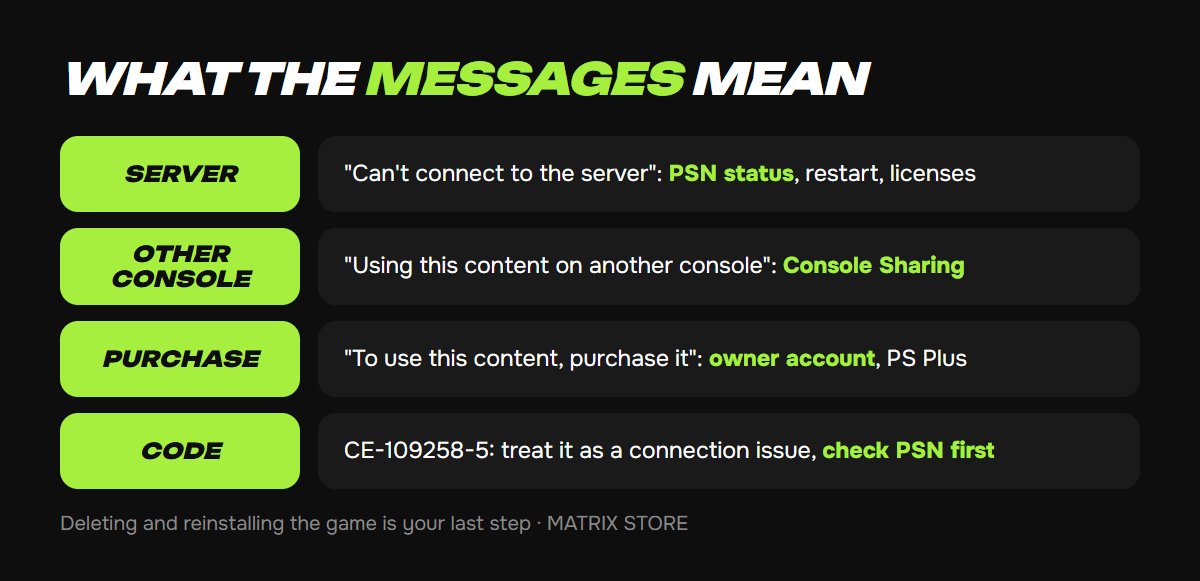
This breakdown comes from Alvaro Trigo's troubleshooting guide, since Sony doesn't publish a single chart of these messages:
- "Can't connect to the server to verify your license" or CE-109258-5: check PSN status, restart, and restore licenses.
- "You're using this content on another console": enable Console Sharing and Offline Play on this PS5, or toggle it off and on.
- "To use this content, purchase it": switch to the owning account, check PS Plus, and restore licenses.
Bought it through Game Sharing?
If a game you got from us shows a padlock, message our manager first. Please don't delete anything or change settings on the account we provided. We'll tell you what to do for your specific case.
When to contact PlayStation Support
If PSN is up, you're on the right account, and neither restoring licenses nor Console Sharing helped, it's time to reach out. Have your online ID, the game title, the error code, and your receipt ready.
Don't want to deal with it?
We'll help with a padlock on a game you bought from us and find you something new for your account or through Game Sharing. Pay with USDT. Questions? Message us in the bot @matrix_eng_bot or our manager on Telegram.