
Got a new PS5? How to transfer your games, saves and account activation
2026-11-03 · Guides
Moving to a new PS5, whether a Pro, a Slim or just a second console, takes an evening if you know what transfers by itself and what you have to do by hand. Sony offers three official tools: direct transfer between consoles, a USB backup and the PS Plus cloud. Here's which to choose and how to avoid losing your games, saves or account activation.
Method 1: PS5-to-PS5 transfer over a network
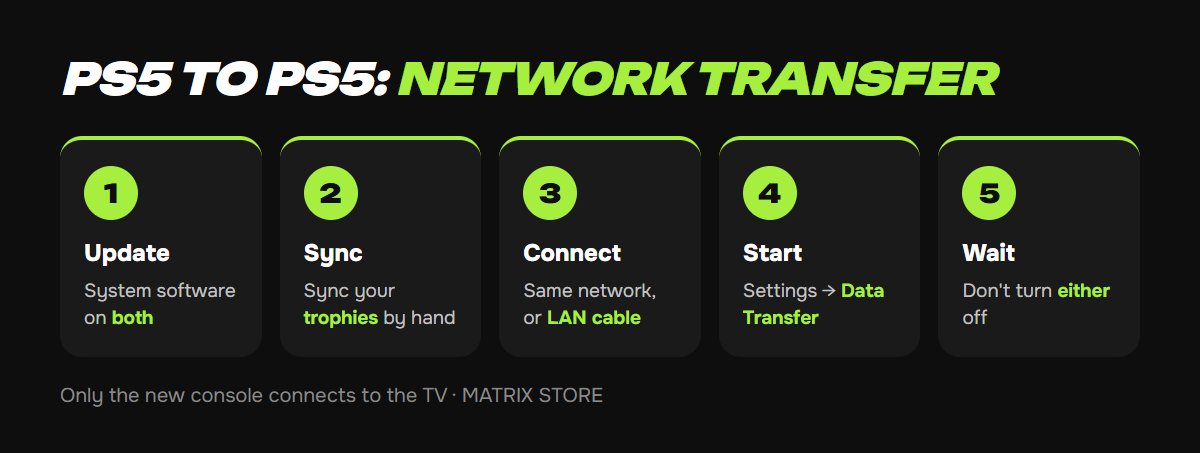
This is the most complete method. A PS5-to-PS5 transfer moves all users and their data, saves, screenshots and videos, the games themselves and console settings (language, sign-in, power saving). Prepare on your old console:
1. Sign in to the same account that will be on the new PS5, and update the system software to the latest version on both consoles.
2. Sync your trophies manually: Profile → Trophies → Options → Sync. Trophies aren't copied in the transfer, because they live on PSN's servers.
3. Connect both consoles to the same network. If both are on Wi-Fi, Sony recommends connecting them to each other with a LAN cable, which is faster. If both are already connected to the router by cable, you don't need another one. Only the new console connects to the TV.
4. During initial setup on the new PS5, there's a Data Transfer step, so just follow the prompts. If you've already finished setup: Settings → System → System Software → Data Transfer → Continue.
5. The new console restarts, and you can use it while games finish downloading in the background. Progress shows in the control center under Downloads/Uploads. Don't turn off either console or change network settings until it's done.
Limits: transfers go from only one console to one console; anything already on the new PS5 isn't overwritten; and you can't transfer from a child account during initial setup, so set up the console with an adult account first. User passcodes also transfer, so you'll need the same one on the new console.
Method 2: USB backup
This works if you've already sold the old console or it's far away. Settings → System → System Software → Back Up and Restore → Back Up Your PS5. Use a flash drive or disk in FAT32 or exFAT (a drive used as extended game storage won't work, since it's formatted differently). The backup includes games, saves, captures and settings for all users. It doesn't include trophies or games on an external USB or M.2 SSD.
To restore: same path → Restore Your PS5. Important: restoring erases everything on the new console and requires system software of the same version or newer than when the backup was made. After restoring, Sony asks you to turn Console Sharing and Offline Play back on (more on that below).
Method 3: PS Plus cloud and reinstalling
If you only need your saves and have a subscription: on your old PS5, upload them to the cloud (Settings → Saved Data and Game/App Settings → Saved Data (PS5) → Upload to Cloud Storage), then download them on the new one. The limit is 100 GB for PS5 and 100 GB for PS4. You simply download the games again from your library. Without a subscription, you can't copy PS5 saves to a flash drive, only make a full backup.
Game Sharing titles from the Matrix Store catalog move with the account: sign in on the new console and download them from your library.
Drives and storage
- An M.2 SSD from your old PS5 can be moved to the new one, and the games on it are available right away. See how to expand your PS5 storage for how to remove and install one.
- An external USB drive with PS4 games and stored PS5 games just plugs into the new console.
- Disc games are reinstalled from the disc, since the license is on it.
The most important part: account activation
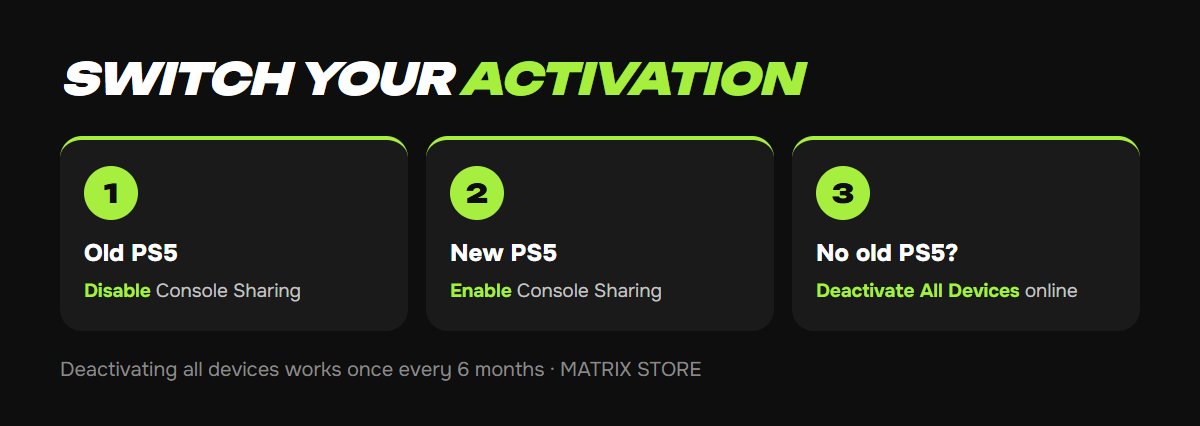
Console Sharing and Offline Play can be on for one PS5 at a time. It determines whether your games and PS Plus are available to other users on the console and work offline. Here's the order:
1. On the old PS5: Settings → Users and Accounts → Other → Console Sharing and Offline Play → Disable.
2. On the new PS5: same path → Enable.
3. If you no longer have the old console, the browser version at playstation.com/acct/management has a Deactivate All Devices option. Sony allows this no more than once every 6 months, so it's better to turn it off on the console itself.
For what this does and how it works with Game Sharing, see Primary console on PS5 and PS4.
Selling or giving away your old console
Before selling: sign out of all accounts, turn off sharing, and choose Reset Your Console under Settings → System → System Software → Reset Options.
Don't want to deal with it?
We'll pick games for your new console, on your own account or through Game Sharing, with instructions for getting started. Pay with USDT. Questions? Message our manager on Telegram or WhatsApp.