
How to delete a user from PS5 or close your PSN account: the difference, what you lose, and how to change your mind
2026-11-05 · Guides
"Delete my PlayStation account" can mean two very different things. One removes a profile from a single console, and the account lives on. The other closes the whole PSN account and takes your purchases with it. Mixing them up can be an expensive mistake, so figure out which one you actually need.
Which one do you need?
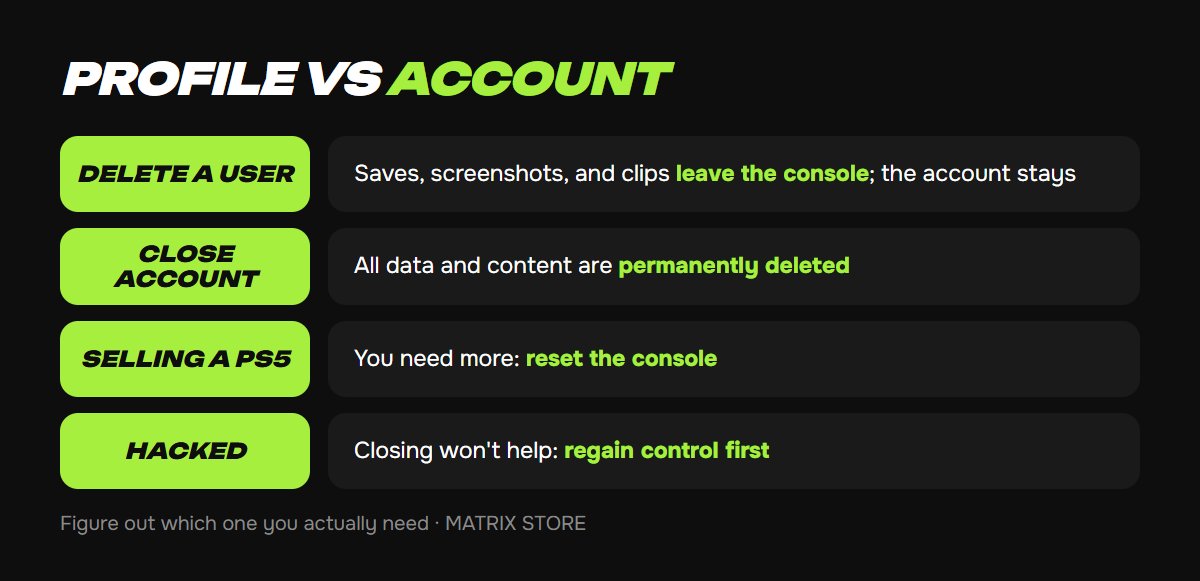
Someone else's profile is on your console: delete the user. Their account still exists, and they can sign in elsewhere.
You're selling or giving away your PS5: you need to do more than delete a user, including resetting the console, and the primary console settings need attention too.
You think you've been hacked: don't close anything. Follow our guide on what to do if your PSN account is hacked.
You're done with this account for good: skip ahead to the section on closing it.
Delete a user from PS5
1. Go to Settings → Users and Accounts → Users.
2. Select the trash can next to the user's name. Depending on the system software, you may see a Delete Users option here instead.
3. Confirm and wait for the console to finish.
This wipes that user's saved data, screenshots, and video clips from the console, and they can't be recovered from it afterward. Back up anything important to the cloud or a USB drive first.
Won't delete? According to Appuals, a user can't be removed while the console is activated as that account's primary PS5. Sign in to that profile and turn off Console Sharing and Offline Play first.
Just need to leave the console without deleting data? Use Settings → Users and Accounts → Other → Sign Out.
Got an account with a Game Sharing title from us on your console? Message our manager before removing it. Looking for a new game? See the Matrix Store catalog.
Close a PSN account
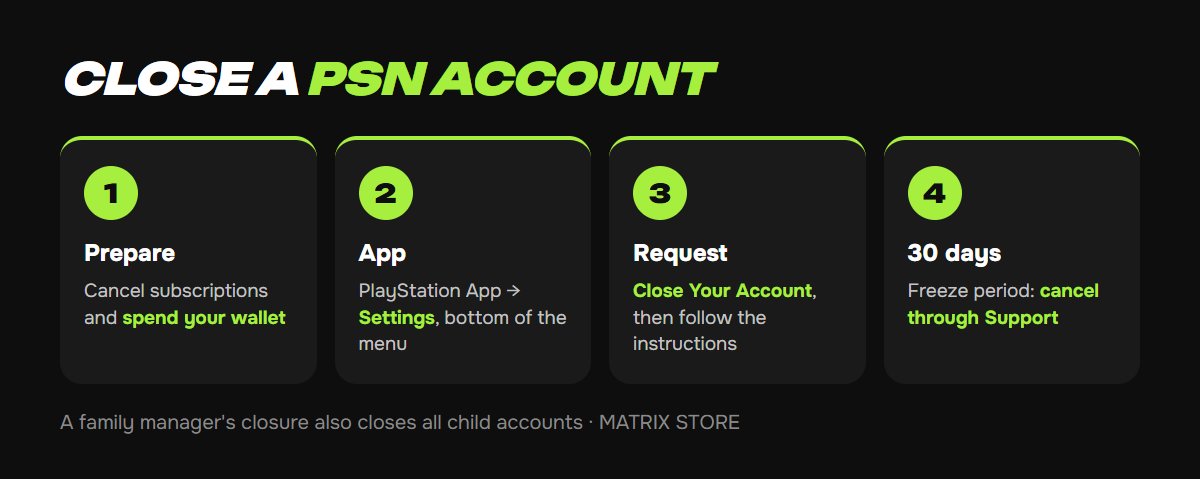
Sony says closing an account permanently deletes all data and content tied to it, and you won't be able to sign in with it again. Before you start:
- Cancel your subscriptions. Here's how to cancel PS Plus auto-renew.
- Spend your wallet balance. Beebom and Appuals both warn that the funds are lost and can't be moved to your bank or another account.
- Accept that purchases won't carry over. Games, cloud saves, and subscriptions don't transfer to a new account.
- Check your family. If you're a family manager, closing your account also closes every child account in your family.
Then follow Sony's steps:
1. Open the PlayStation App and sign in.
2. Select Settings at the top of the home screen and scroll to the bottom of the menu.
3. Select Close Your Account and follow the on-screen instructions.
The PlayStation Family app works the same way, except Settings is at the bottom of the home screen. If you don't see the option, contact PlayStation Support.
You get 30 days to change your mind
Once Sony receives your request, the account enters a 30-day freeze period. At any point during that window, you can contact PlayStation Support and cancel the closure. After that, the account can't be recovered.
Don't want to deal with it?
We'll help you set up a new account and find a game for it. Pay with USDT. Questions? Message us in the bot @matrix_eng_bot or our manager on Telegram.