
PS5 notifications: how to use Do Not Disturb, stop pop-ups during games, and clear your notification list
2026-11-06 · Guides
Your PS5 has an opinion about everything: a friend signed in, a trophy popped, a download finished. That's fine in the menu and annoying in the middle of a cutscene. The quick fix is PS button → Notifications → Do Not Disturb. For a permanent setup, spend two minutes in Settings → Notifications and decide which pop-ups you actually want.
Nothing gets lost either way. Everything that arrives while pop-ups are off still lands in your notification list.
Do Not Disturb in three steps
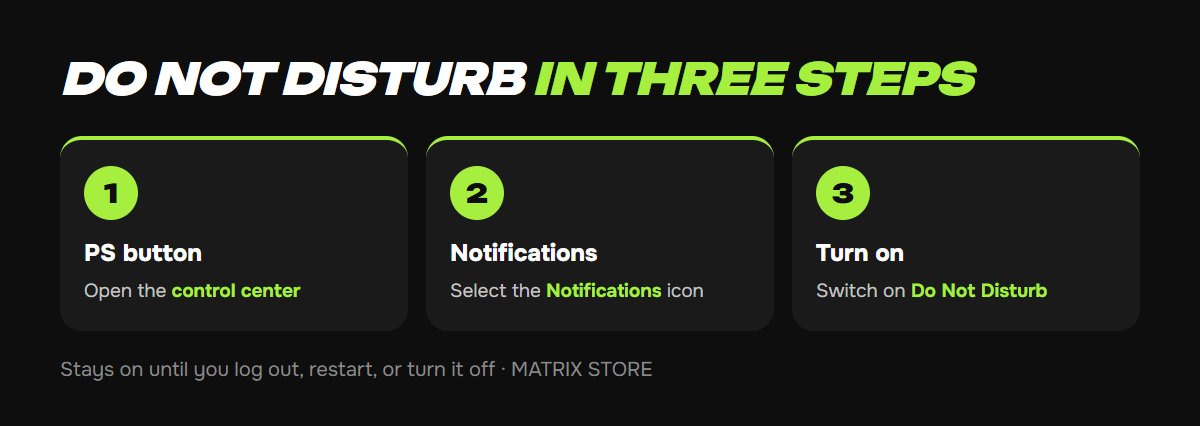
1. Press the PS button to open the control center.
2. Select Notifications (the bell icon).
3. Turn on Do Not Disturb.
According to Sony, pop-ups stay hidden until you log out, restart your PS5, or turn Do Not Disturb off. It's a temporary switch, which makes it perfect for a movie night or a long story session.
Every option in Settings → Notifications
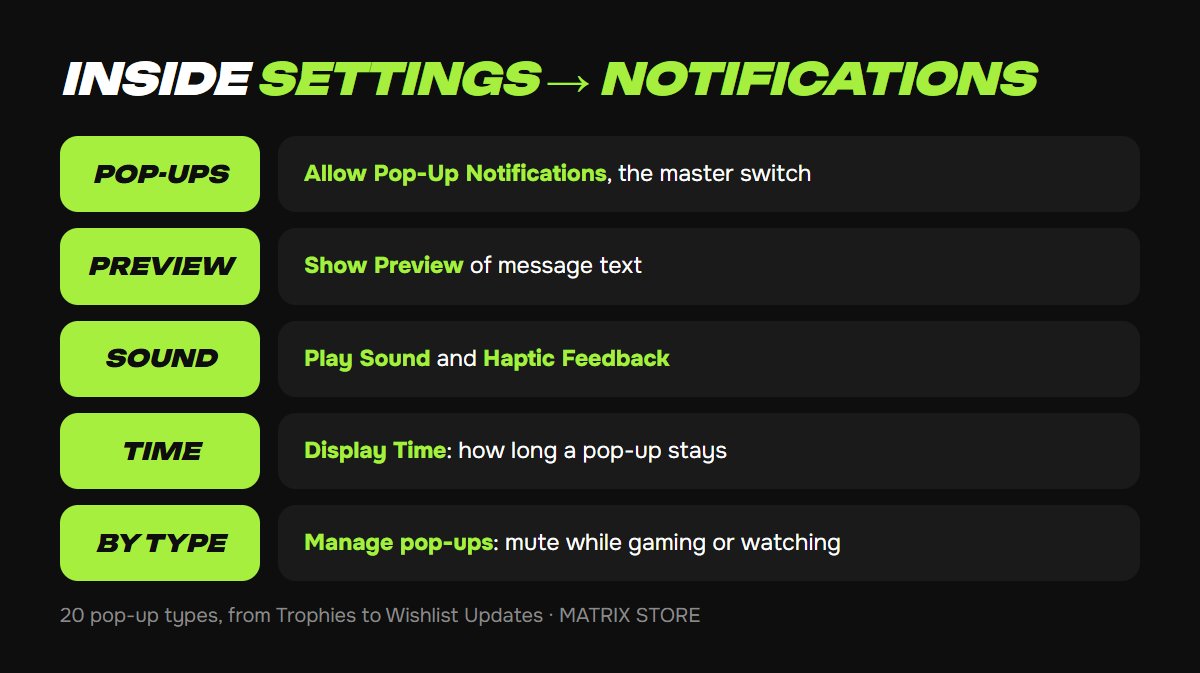
Allow Pop-Up Notifications is the master switch. Turn it off and you'll never see a pop-up, though notifications still collect in the list.
Show Preview displays message text inside the pop-up. If the TV is in a shared room, turn it off so everyone on the couch isn't reading your DMs.
Play Sound adds a short chime.
Haptic Feedback adds a light controller buzz. It only works when a vibration intensity level is selected in your controller settings.
Display Time sets how long each pop-up stays on screen.
Manage pop-ups is where the real control lives. Sony lists 20 types, including When Friends Go Online, Game Invitations, Trophies, Tournaments, Challenges, Friend Requests, Messages, Parties, Song Change, Downloads and Copies, Uploads, Wishlist Updates, From PlayStation, Subscriptions, and Game Help. For each one, you can automatically hide pop-ups while playing games, watching videos, or broadcasting.
While you're tuning your console, browse the Matrix Store catalog for games on your own account or through Game Sharing.
A sensible setup
- When Friends Go Online: off during games and videos. It's the most frequent pop-up and the least useful mid-match.
- Downloads and Copies: off during games. Check progress in the download list instead.
- Trophies: your call. Trophy hunters keep it; if pop-ups ruin cutscenes, hide them during games. The trophy still unlocks.
- Wishlist Updates: keep it, so you hear about sales on games you're watching.
- Messages and Game Invitations: keep them if you play with friends, hide them during solo sessions.
Streaming? Hide pop-ups during broadcasts so viewers don't see your private messages. Our PS5 streaming guide covers the rest of the setup.
How to view and delete notifications
View: PS button → Notifications, then select one to open it.
Delete one: highlight it and press the square button.
Delete all: in the list, press Options and select Delete All Notifications.
Troubleshooting
Pop-ups came back after a restart. That's expected. Do Not Disturb doesn't survive a reboot. For permanent quiet, turn off specific types under Manage pop-ups.
I don't see Controller Profiles or PS Link Device Nearby. Those types only appear for users with a DualSense Edge or Access controller, or a PS Link device, assigned to them.
No vibration on notifications. Set a vibration intensity level first. Our DualSense settings guide shows where.
I want Notifications first in the bottom row. You can rearrange the icons: see our guide to customizing the PS5 control center.
Don't want to deal with it?
We'll help with console setup and pick a game for your account or through Game Sharing. Pay with USDT. Questions? Message us in the bot @matrix_eng_bot or our manager on Telegram.