
New PS5 setup guide: connect it, update it, sign in to PSN, and the 5 settings to change on day one
2026-11-07 · Guides
Quick answer: attach the base or feet, plug the HDMI cable into your TV and the power cable into the console, turn on the PS5, and connect your controller to the console with a USB cable. The setup wizard walks you through the rest: controller, language, internet, display, rest mode, and the user agreement. Then update the system software and sign in to PlayStation Network, or create a new account.
Step 1: Connect everything
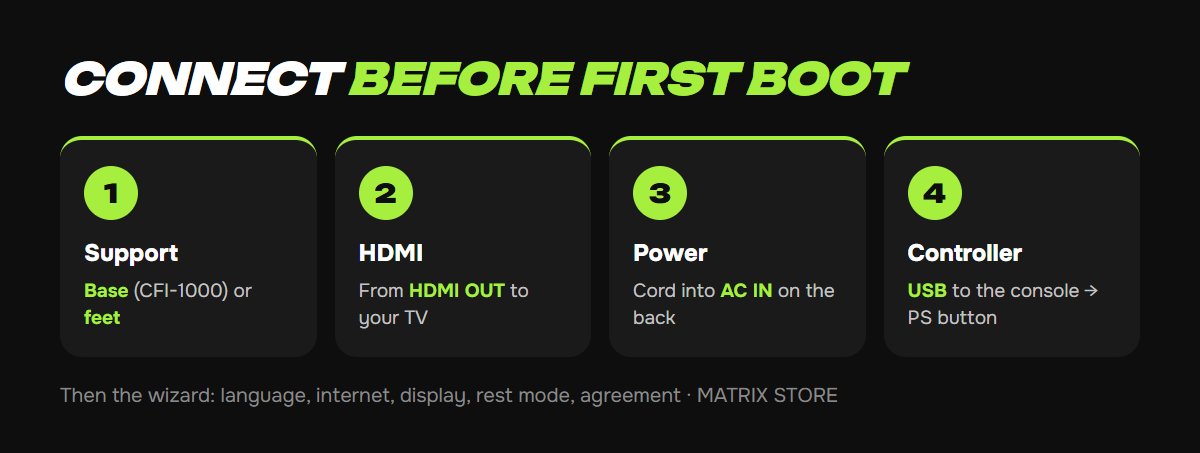
Base or feet. Sony says to always attach the base to the original PS5 (CFI-1000). The CFI-2000 models and PS5 Pro (CFI-7000) use feet, and standing them vertically requires the separately sold vertical stand.
HDMI. Run the included cable from HDMI OUT on the console to an HDMI input on your TV. Use an HDMI 2.1 port if you have one. Our best TV settings for PS5 guide covers the rest.
Power. Plug the power cord into AC IN on the back.
Internet. If your router is close, an Ethernet cable gives you faster, steadier downloads.
Step 2: First boot
Turn on the console, connect the controller with the USB cable, and press the PS button. The setup wizard asks you to:
1. Connect your controller.
2. Choose your language.
3. Set up your internet connection.
4. Adjust display settings.
5. Choose power options for rest mode.
6. Accept the user agreement.
Step 3: Update the system software
Once you're online, the console usually prompts you to update. If it doesn't, go to Settings → System → System Software → System Software Update and Settings. Download failing? You can update from a USB drive instead.
Step 4: Sign in or create a PSN account
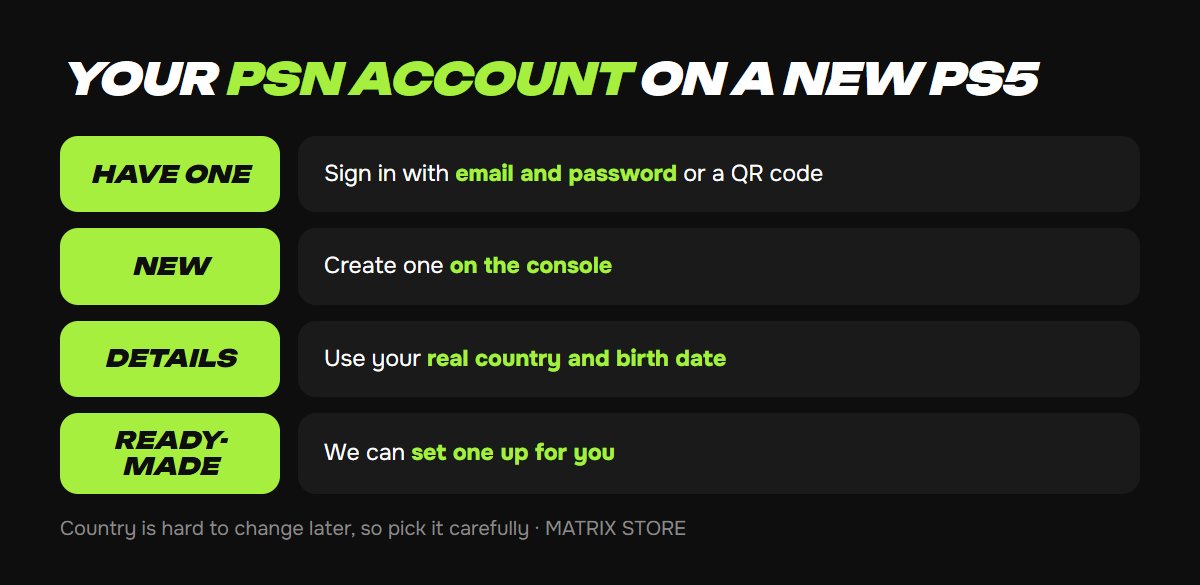
After the update, the PS5 asks you to sign in to PlayStation Network.
Already have an account? Sign in with your email and password, or scan the QR code with the PlayStation App on your phone.
New to PlayStation? Create an account right on the console. Pick your real country and date of birth, since you can't easily change them later, and use an email you'll keep long term.
Rather skip the setup work? We can create a ready-to-use PSN account for you. See Matrix Store PSN accounts.
Step 5: Bring over your old data
From a PS4 or an older PS5, you can move saves and games over your network, with an external drive, or through PS Plus cloud storage. See our transfer data to a new PS5 guide.
Five settings for your first night
1. Primary console. Turn on Console Sharing and Offline Play so your games launch even without internet. Our primary console guide shows how.
2. 2-step verification. Protects your account from takeovers. See our PSN 2-step verification guide.
3. Password at checkout. Require your password for purchases so nobody spends from your wallet without you.
4. Controller charging in rest mode. Settings → System → Power Saving → Features Available in Rest Mode → Supply Power to USB Ports.
5. Graphics mode. Choose between smoother frame rates and sharper visuals. Our performance vs. resolution mode guide explains the trade-off.
Want a hand?
We'll help with first-time setup, create an account, and pick games for your account or through Game Sharing. Pay with USDT. Questions? Message us in the bot @matrix_eng_bot or our manager on Telegram.